

Product Updates
Get the latest platform updates, features, and announcements—all in one place.
Boost Video Accessibility with the GenAI Video PowerPack!
Try Now
Supercharge Your Compliance Efforts with AutoPilot Remediation Max!
Try Now
Strengthen Your PDF Accessibility Efforts with Structural Remediation Max!
Try Now
Don't Miss Any of Our Upcoming Webinars—Save Your Spot!
Register
The YuJa Community is here! Connect, get updates, and access exclusive content.
Join Now

Get the latest platform updates, features, and announcements—all in one place.
Over the coming weeks, YuJa Verity will roll out a range of new features that monitor assessments to ensure academic integrity, including an AI assistant that answers your questions about test-taker sessions, richer reporting, and stronger safeguards for remote exams.
Get quick insights and specific details about your assessments by asking the new AI assistant
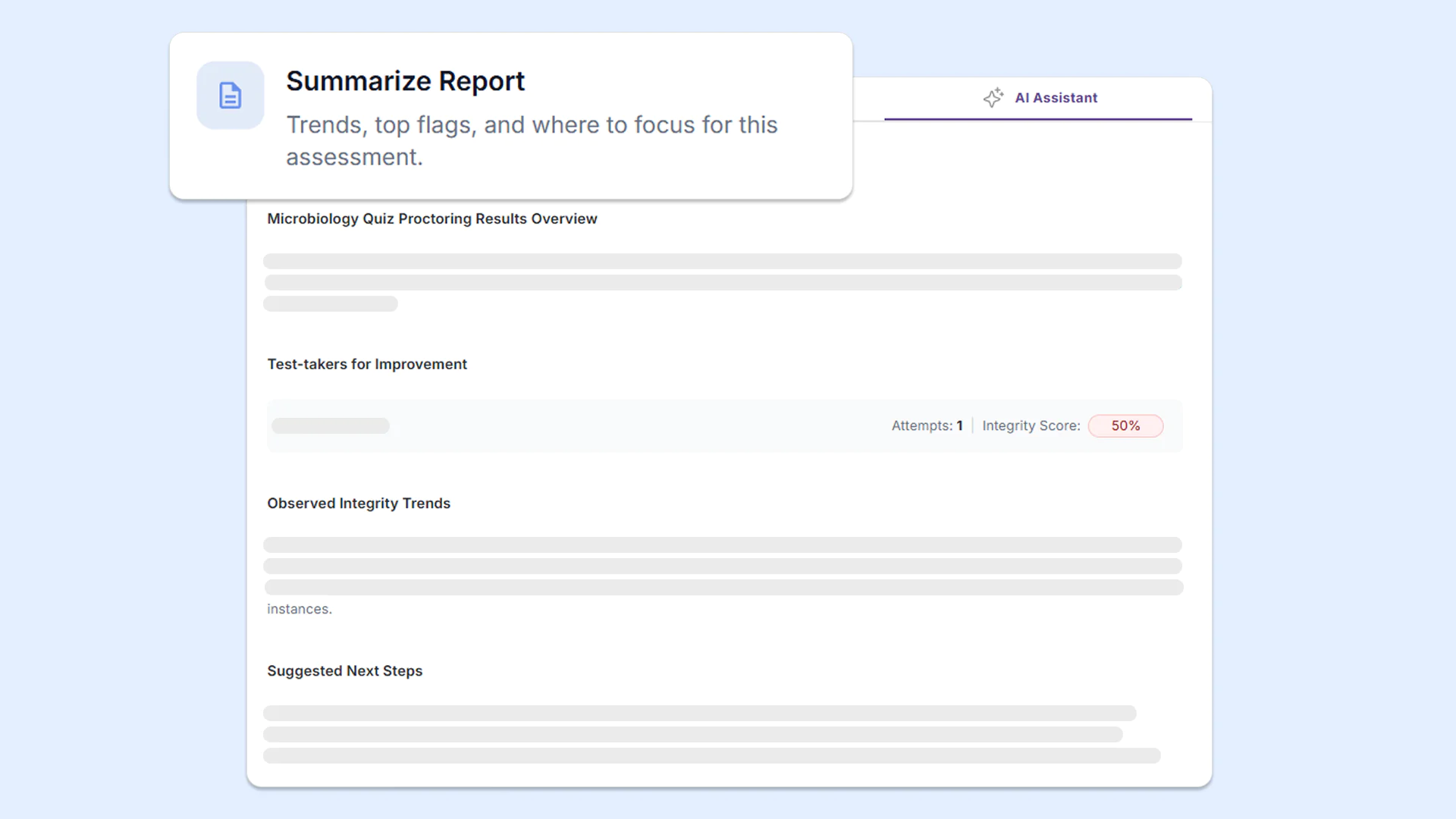
YuJa Verity is introducing an AI assistant that enables proctors to ask and receive answers to natural language questions about specific assessment sessions. Located in the Assessment Report for any given quiz, the AI assistant features four different menus to help streamline assessment review:
Summarize Report: Provides a summary of the assessment session, identifying trends, top flags, and risks to help instructors investigate issues.
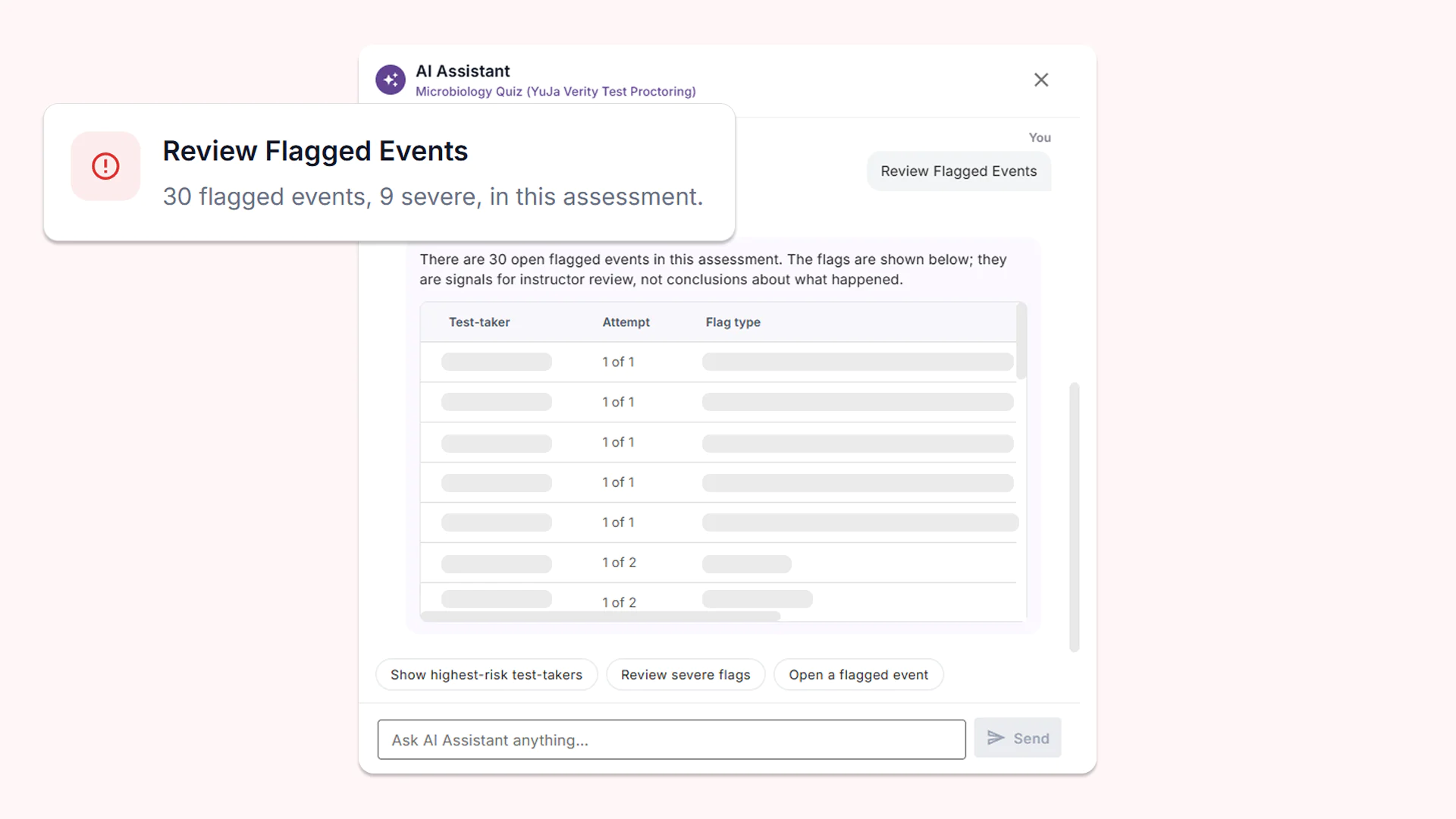
Review Flagged Events: Provides a list of open flagged events, with the test-taker and flag type, for your review.
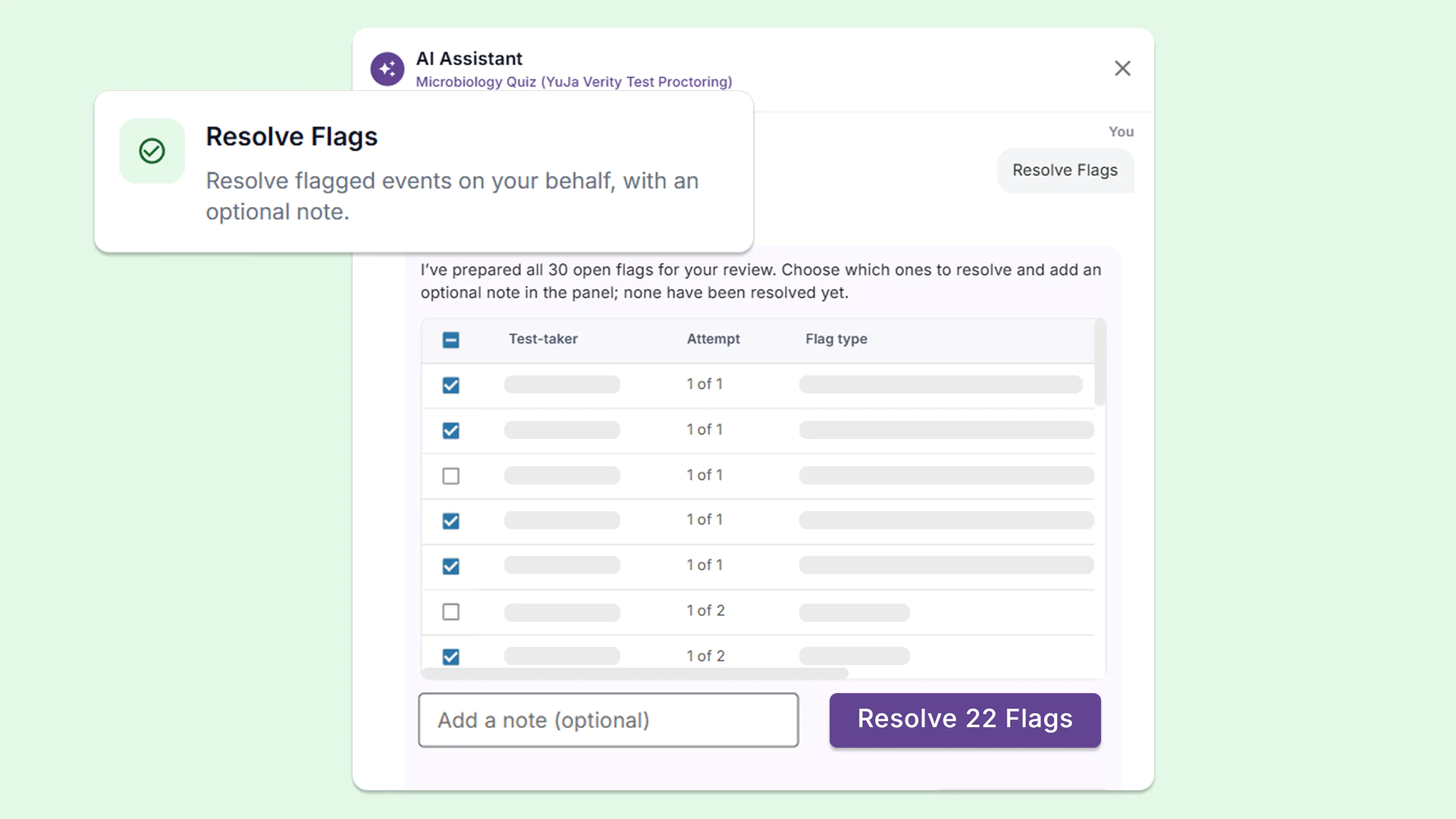
Resolve Flags: Resolves flagged events on your behalf, with the option for instructors to add a note with any relevant information that provides context.
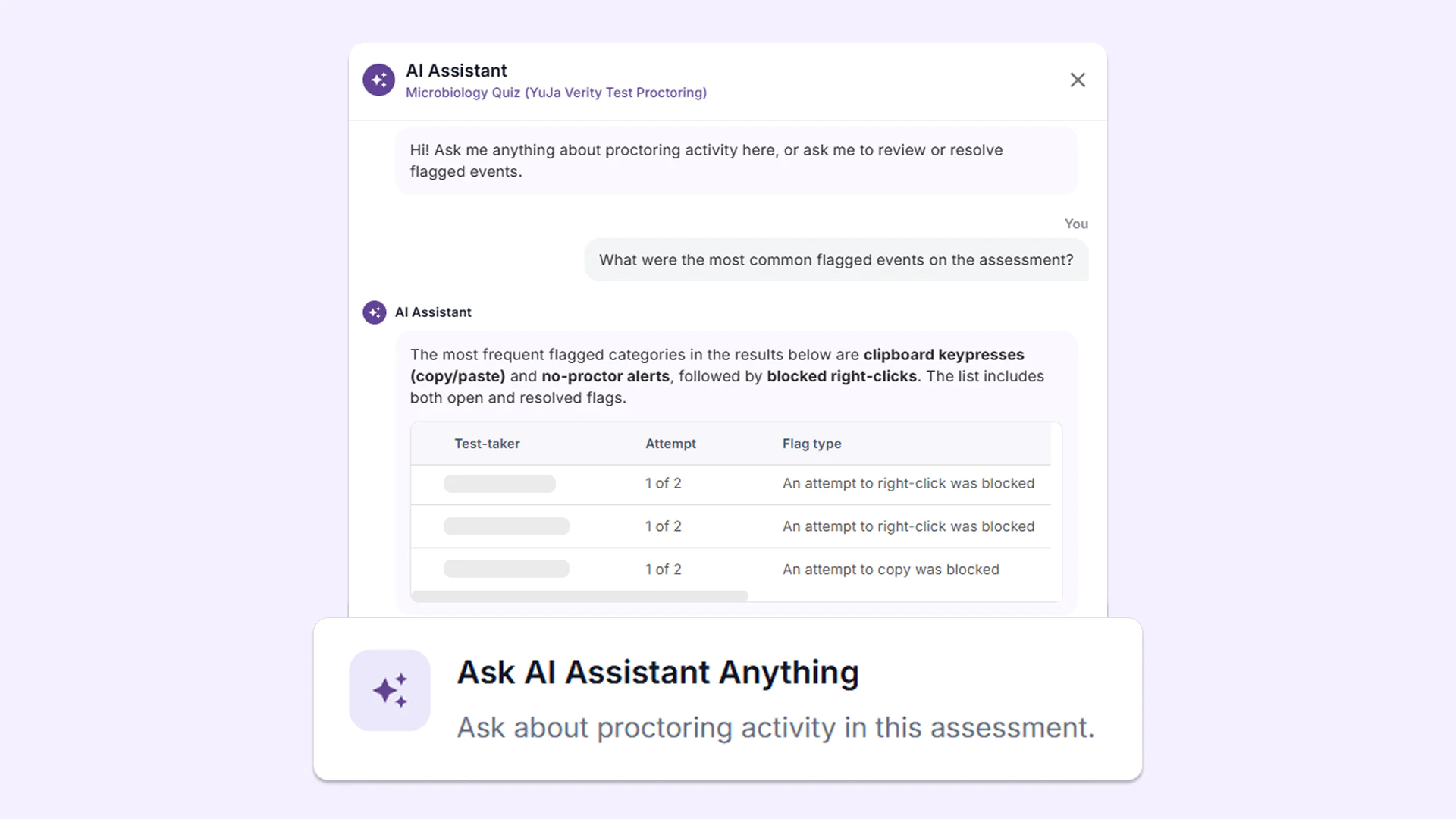
Ask AI Assistant Anything: Allows instructors to ask the AI Assistant any additional questions related to the assessment, such as which flagged events occurred most often.
See the full picture of academic integrity with new centralized dashboard and monthly email summaries
YuJa Verity is adding a new centralized dashboard for administrators and monthly instructor notifications to provide greater visibility into academic integrity activity and system interventions. These expanded insights help administrators and instructors better understand assessment activity and the impact of monitoring tools.
New features include:
Centralized dashboard: Get high-level insights into your institution’s usage of YuJa Verity with the new centralized dashboard. View the total number of flagged integrity issues, breakdowns by issue type, and counts of actions that YuJa Verity prevented. Period-over-period comparisons may also help instructors and administrators identify changes in activity over time.
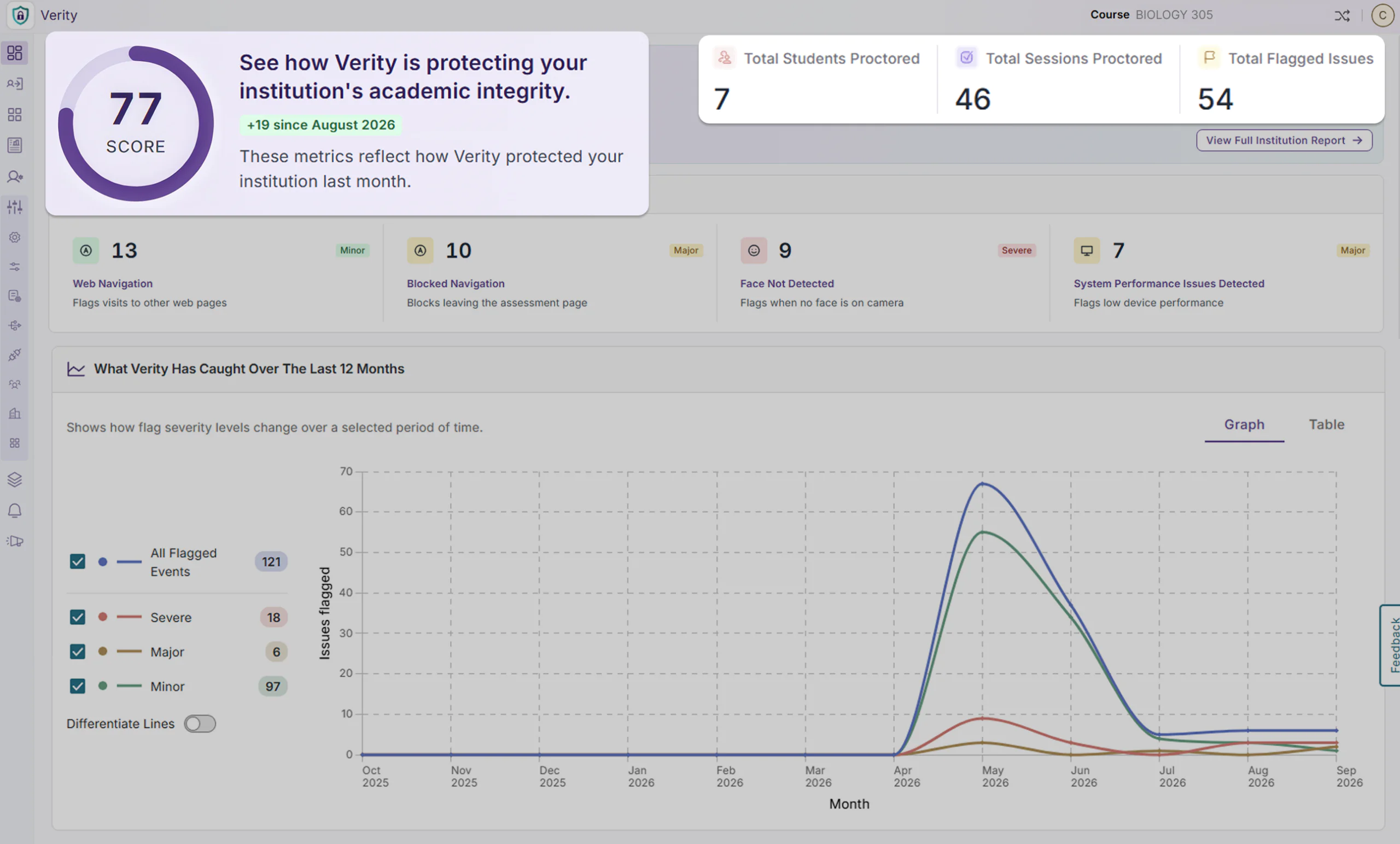
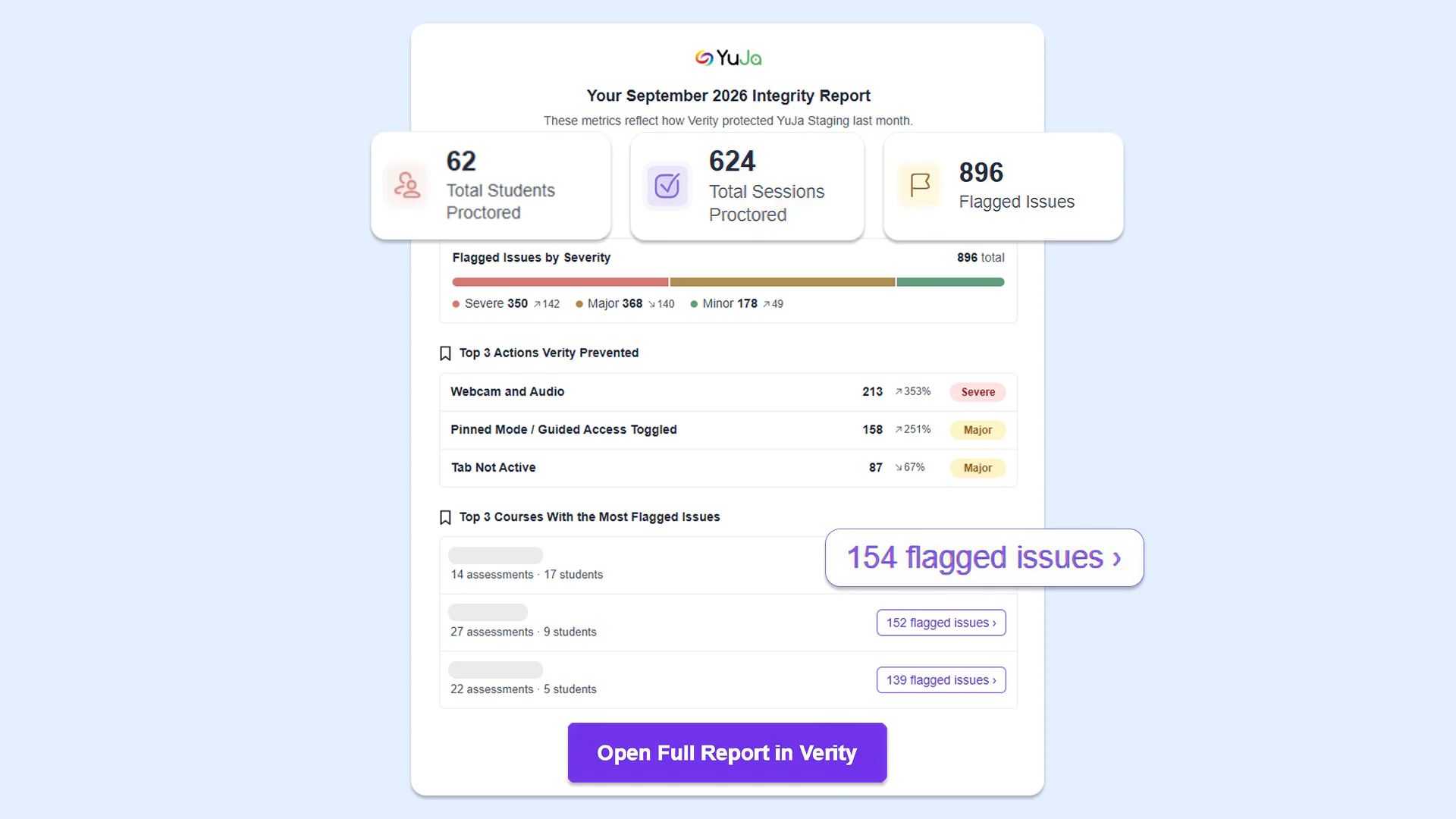
Enhanced monthly emails: Receive more detailed monthly notification emails for academic integrity insights, which provide the total number of flagged issues for the month, sorted by severity type. Email reports also include a breakdown of issue types and the number of violations that YuJa Verity prevented (e.g., an attempt to copy and paste), helping instructors better understand assessment activity and the impact of integrity-monitoring tools.
Deeper AI analysis of room scans and continuous workspace monitoring with better verification of secondary cameras
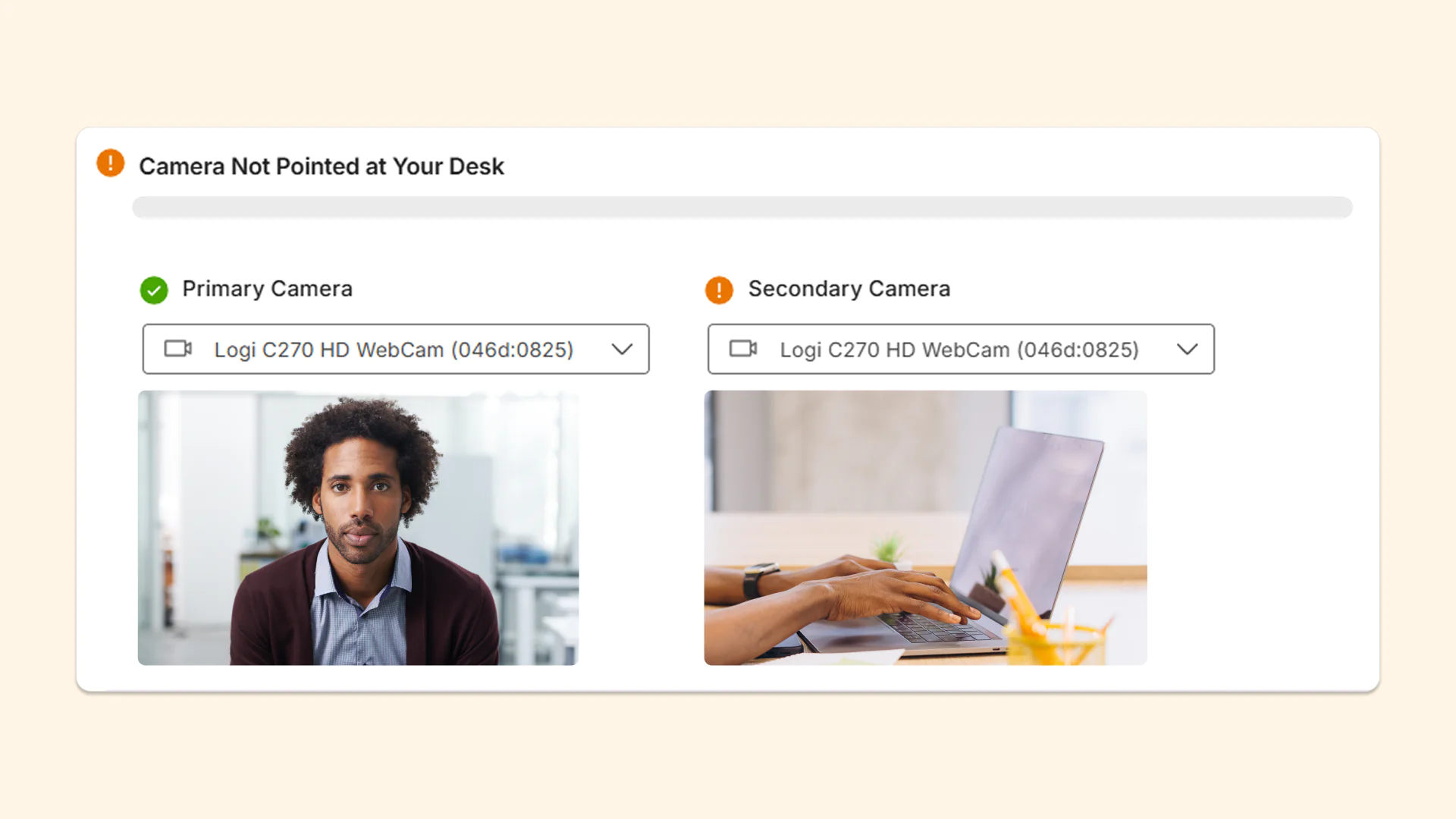
YuJa Verity is adding the ability to specify and verify secondary camera recordings and room scans:
AI secondary camera verification: AI secondary camera verification: AI analyzes the secondary camera and ensures that it is pointed in the right place.
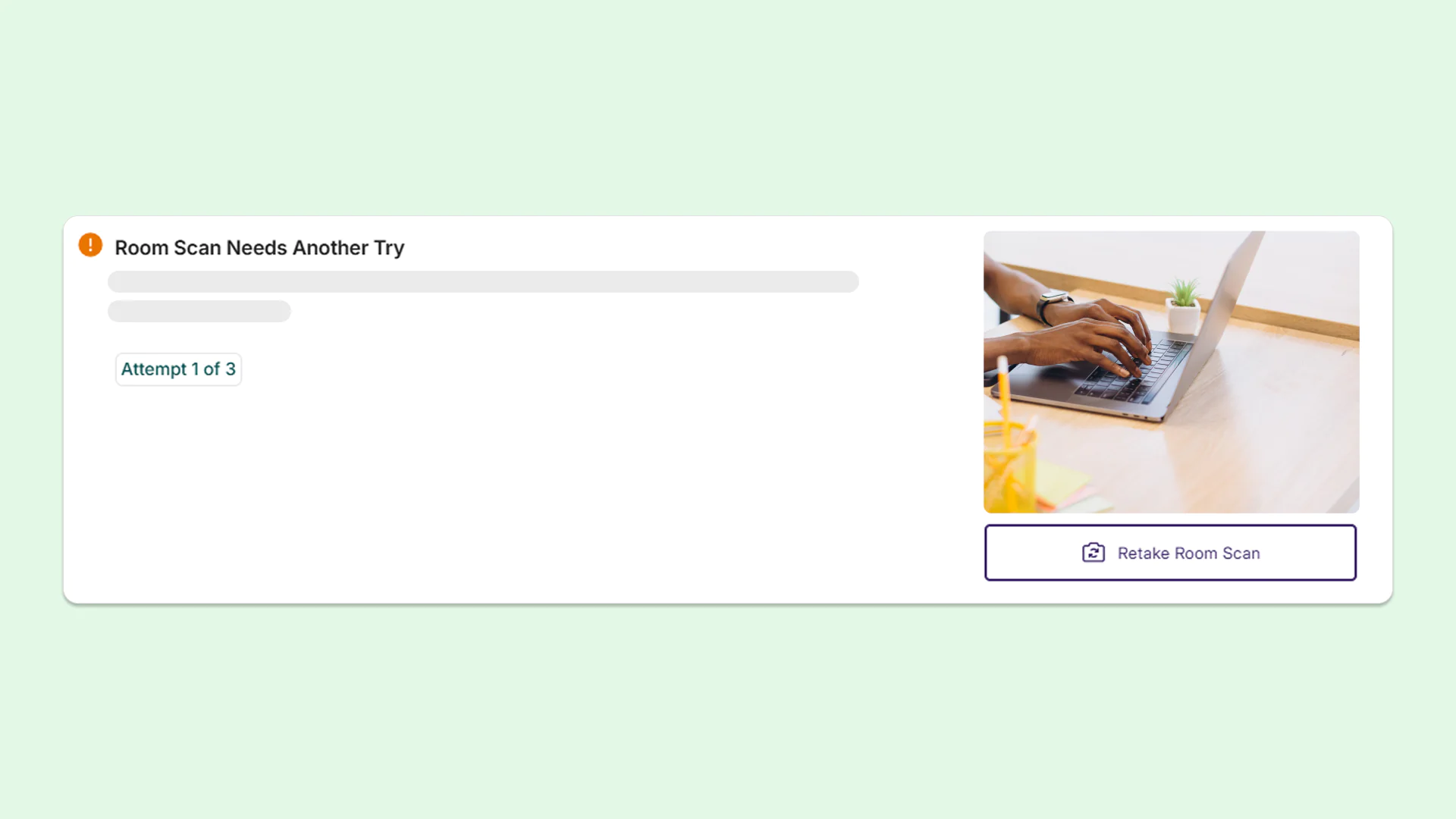
AI room scan verification: AI analyzes the contents of the room scan to detect whether or not test-takers scanned the entire room. YuJa Verity will flag the room scan if it’s invalid or does not show the entire 360-degree view of the room, ensuring instructors are aware if a test-taker doesn’t conduct the room scan properly.
Schedule when assessments open and when test-takers get notified
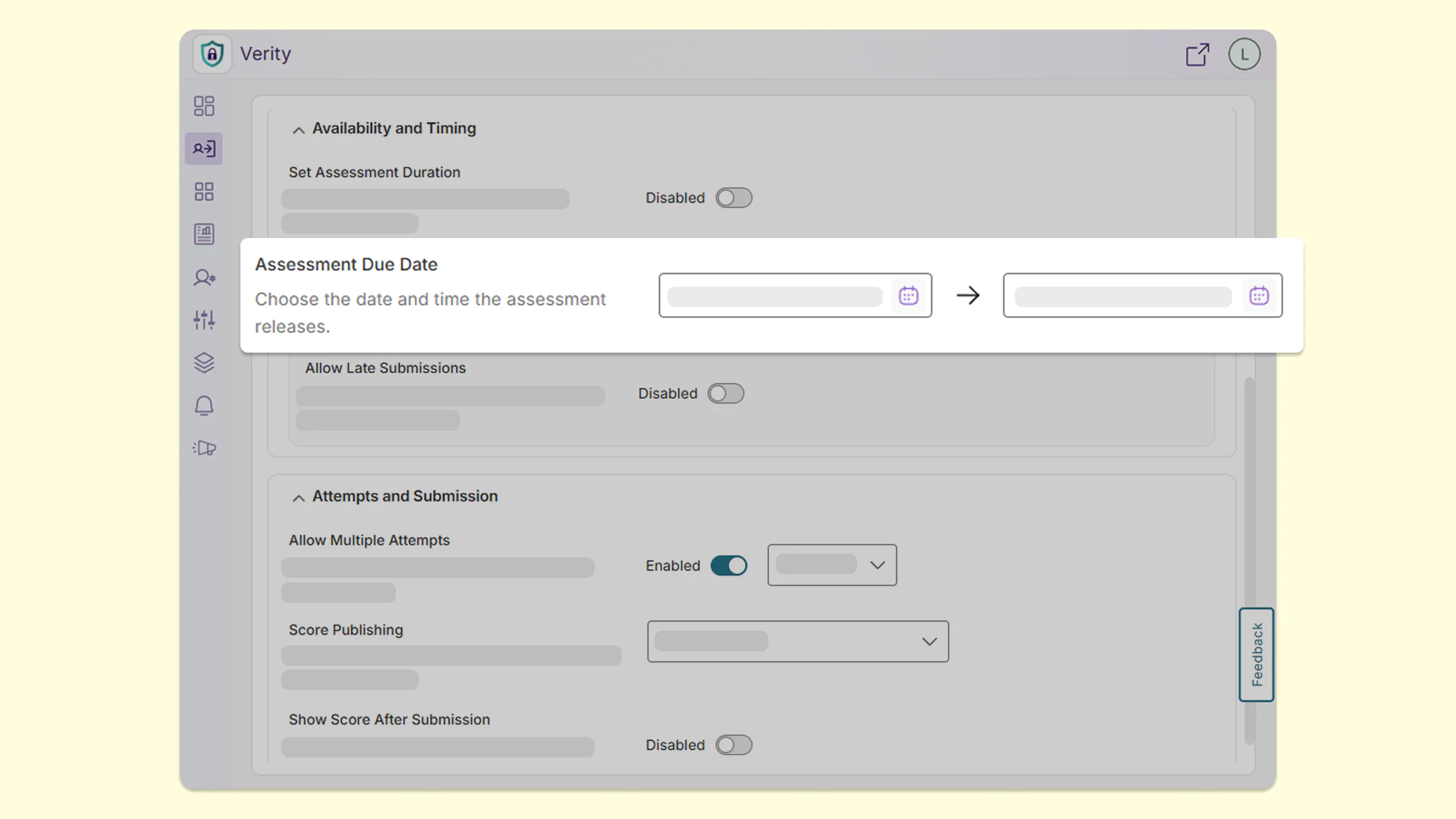
YuJa Verity is adding the ability for instructors to configure an assessment’s start time, giving them greater flexibility when scheduling assessments. Instructors will also be able to choose when test-taker notification emails are sent, helping ensure test-takers are informed when the assessment becomes available.
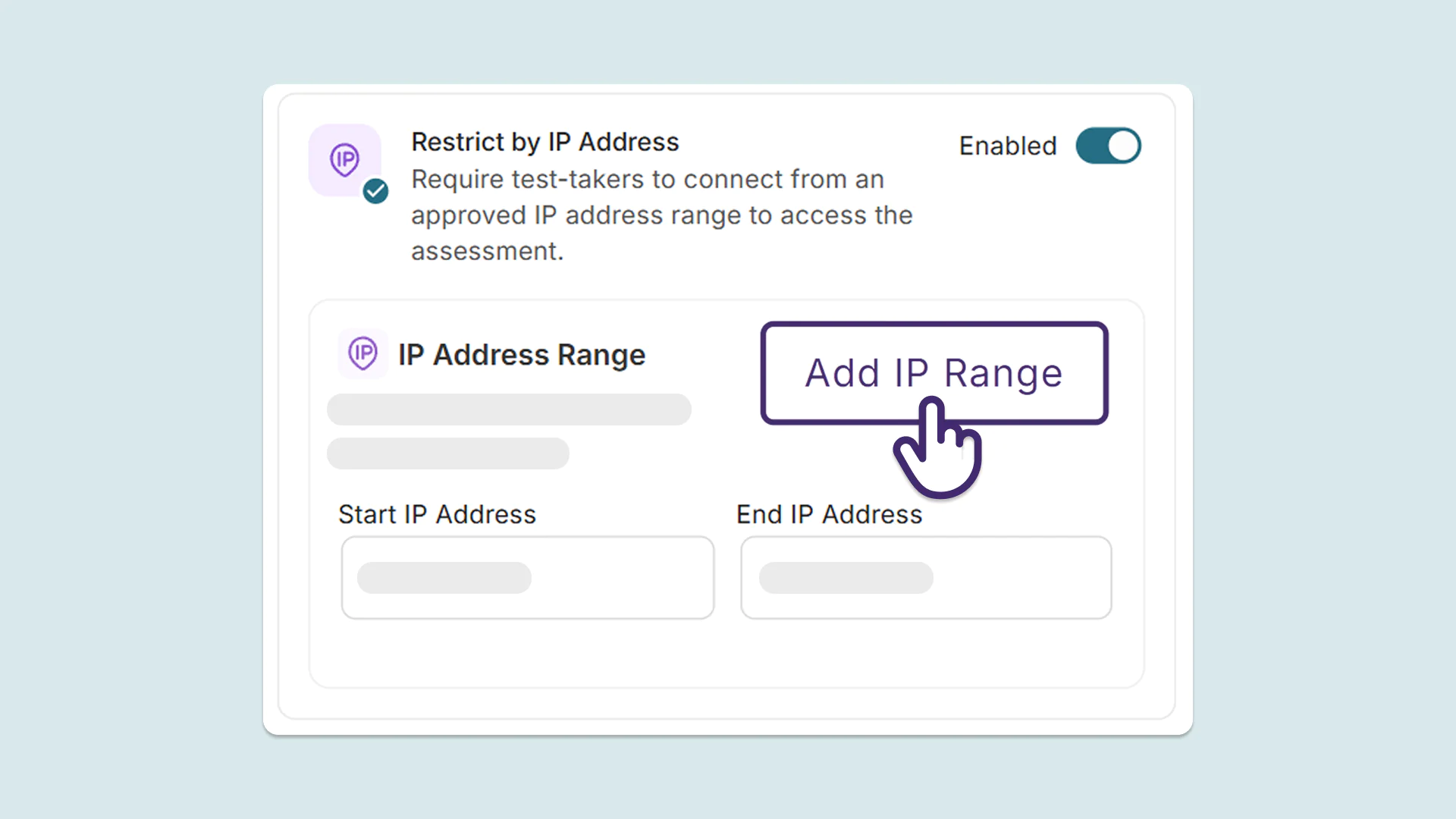
Restrict exams to approved locations based on IP address so test-takers can’t take them from just anywhere
Administrators can now restrict an exam to specific networks during the proctoring setup process using an IP-address range, allowing institutions to control assessment access in YuJa Verity. This gives admins extra confidence in the testing environment without requiring stricter proctoring for every exam.
Improved AI analysis to catch suspicious apps you didn’t block
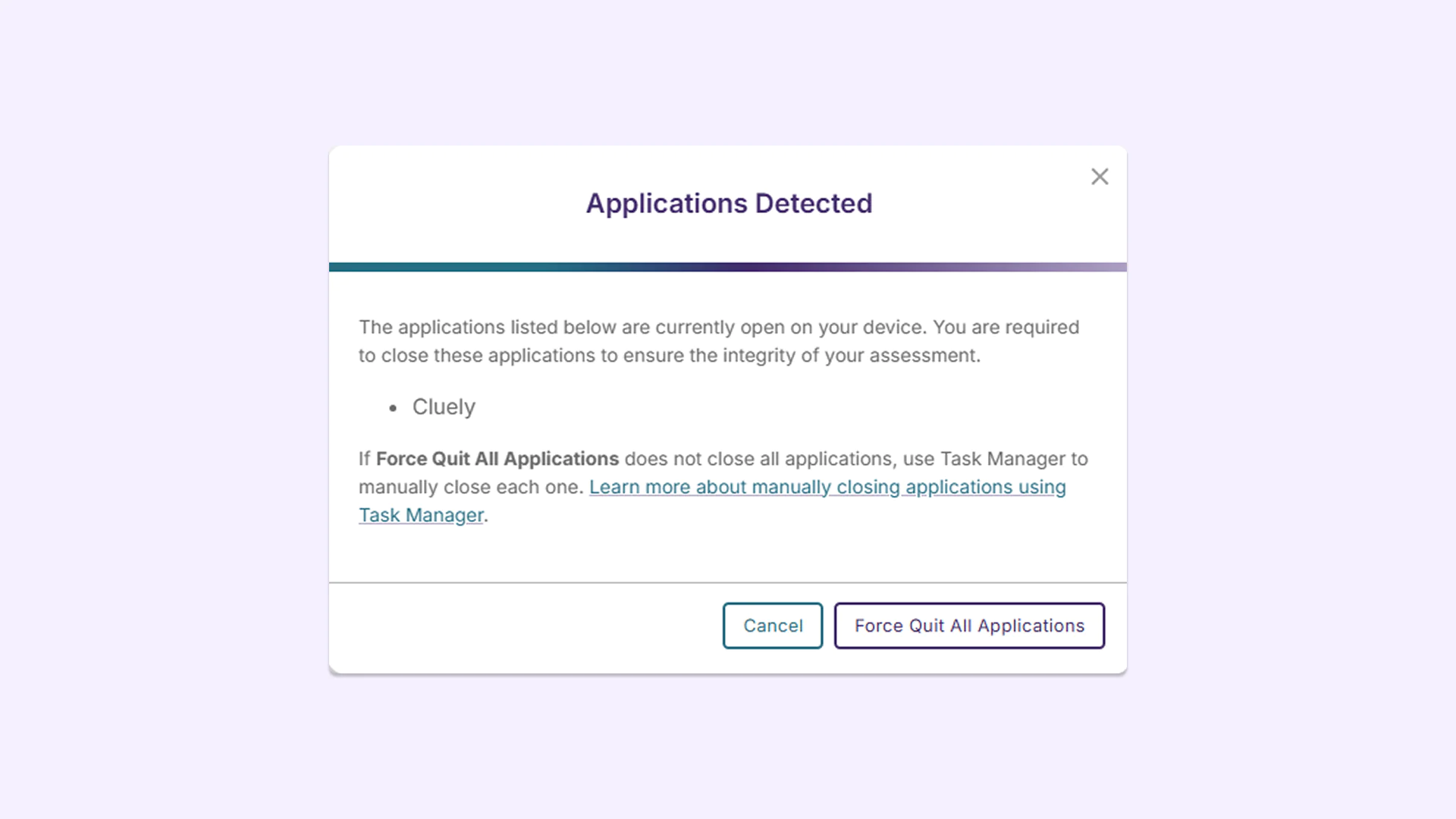
YuJa Verity is enhancing its AI-powered analysis to examine open applications for signs of potential cheating, including when the option to block all applications is disabled. Even if proctoring configurations allow certain applications, AI now reviews open applications on each test-taker’s computer and flags tools that could be used to cheat, including Claude, NetBird, Chrome, and more. This gives instructors an additional layer of insight into potential academic integrity concerns.

Block AI cheating apps that hide on screen and disguise their names
Some AI cheating tools, such as Cluely and Interview Coder, are built to go unnoticed. They can show answers in a hidden window on top of the exam that the test-taker can see but screen recordings can’t. Some also disguise themselves by using the name of an ordinary, harmless program. YuJa Verity now recognizes a wider range of these tools, even when they’re hidden or disguised, and flags or blocks them during proctored assessments. This helps ensure test-takers’ answers reflect their own knowledge, rather than hidden AI help.
Better microphone detection to ensure YuJa Verity connects to the test-taker’s correct microphone
YuJa Verity is introducing better microphone detection to help verify that the appropriate microphone is being used during an assessment. This enhancement adds another check to the microphone setup process to help ensure the intended audio device is used.
Set up LMS integrations faster with autofilled fields and error checks
YuJa Verity has made the LMS integration process easier to help administrators complete setup with fewer errors. Integration fields can be filled in automatically to reduce manual entry, while validation checks help identify potentially misplaced Client ID and Deployment ID values and detect unwanted spaces in configuration fields.
This feature is available in:
API integrations: Configuration fields are prepopulated and every field is automatically checked for unwanted spaces that could cause the connection to fail.
LTI integrations: Values such as the Client ID, Deployment ID, and JWKS URL are autofilled where possible. YuJa Verity also alerts users if the Client ID and Deployment ID appear to be entered in each other’s fields, and flags any unwanted spaces in configuration fields.
LMS Visualizer integrations: When connecting YuJa Verity to Canvas so test-takers without the Verity Browser Extension can still see the Verity interface, configuration fields are automatically filled in and checked for unwanted spaces.
Prevent obstructed footage with alerts when a test-taker’s webcam video turns blurry
YuJa Verity now flags moments when a test-taker’s webcam image becomes blurry, whether from a technical issue or a covered or obstructed lens. Instead of discovering unusable footage after assessment completion, instructors will catch this issue immediately, making reviews faster for instructors and more fair for test-takers.
Secondary exam password for assessments so only test-takers in approved locations can access them
Instructors and administrators can now add a secondary exam password to YuJa Verity proctored assessments in their LMSs. After YuJa Verity begins the proctoring session, test-takers must enter a password provided by the instructor or proctor before they can access the test. This helps institutions that require in-person testing make sure test-takers only receive exam access once they’ve arrived at an approved location, like a classroom or testing center.
Instructors and administrators can:
Set a custom password for each assessment: Create and save a secondary password that test-takers must enter manually, giving testing centers control over when each exam can begin.
Keep the existing proctoring workflow: YuJa Verity’s automatically generated password still starts the proctoring session, so the secondary password adds a layer of security without changing how proctoring works.
Reuse passwords across copied exams: When an assessment is copied from a master exam, including into another D2L Brightspace course, the secondary password carries over automatically, so instructors don’t need to re-enter it for every copy.
Rely on a password that stays put: The secondary password remains in place until an authorized user changes it.
Set your own rules for when YuJa live proctors intervene during assessments
Institutions using Live Proctoring can now control how YuJa’s proctors respond to suspicious behavior during an exam. Administrators can choose which flags—for example, multiple faces on screen—require a proctor to intervene in real time, and which flags should stop the test entirely so the test-taker cannot continue. When a proctor steps in, test-takers now see a clearer message explaining what’s happening, reducing confusion in the moment. After the exam, an updated results table shows each proctor intervention more cleanly, including which flags triggered it and when it took place, so instructors can review incidents quickly and with full context.
Get a clearer picture of proctoring usage with assessment and attempt counts broken down by type
The Institution Report now separates the number of assessments proctored from the total number of proctored attempts. Since many assessments allow test-takers more than one attempt, this gives administrators a more accurate view of how proctoring is being used across their institution. The report now also breaks down how many assessments were proctored using Automated, Live, and Live Check-In proctoring, making it easier to see which methods are used most and plan resources accordingly.
Map LMS roles to YuJa Verity roles for accurate access
Administrators can now map the roles passed from the LMS through LTI to specific YuJa Verity roles. This makes sure instructors, students, and other users automatically get the right level of access in YuJa Verity based on their LMS role, without needing to adjust permissions manually.
Over the next few weeks, YuJa Lumina will be adding exciting new features, including automatic LMS relink improvements, AI-powered silence removal, enhancements to the video editing management workflow, and much more.
Create a smooth and engaging video experience for audiences with AI-powered filler-word and silence removal
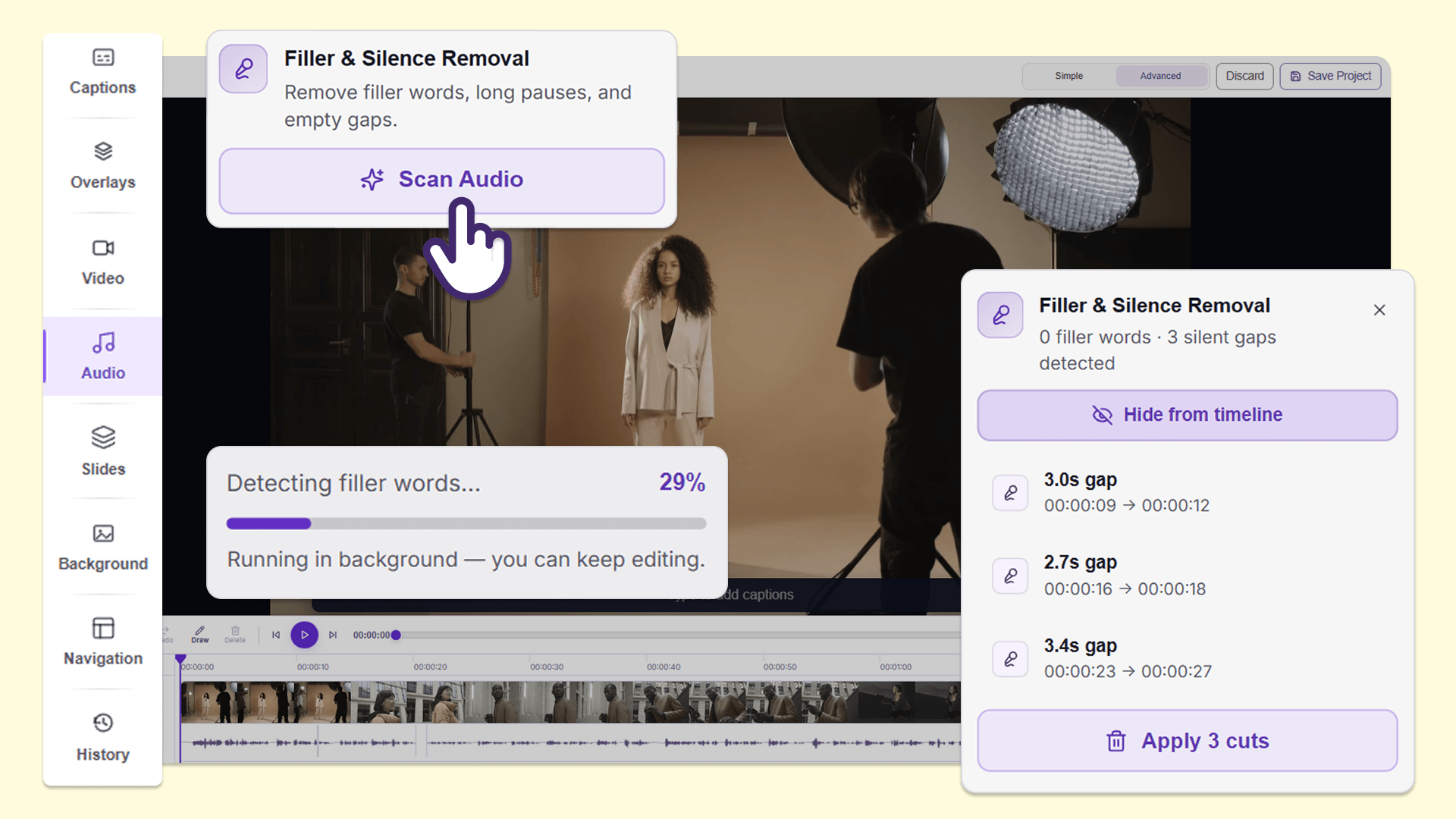
Instructors can now use Filler & Silence Removal in the audio panel of the YuJa Lumina Video Editor to find and remove filler words, such as “um,” and extended silent pauses from recordings without manually reviewing and editing the video. This makes it faster to clean up long lectures and presentations before sharing them with students, helping them stay focused and engaged with content that is more polished and concise.
Users can:
Remove filler words: Detect and remove filler words such as “um,” “uh,” and “like” to improve viewer comprehension and make lectures and presentations more professional.
Remove silences: Detect and remove long silent pauses to make lectures and presentations more engaging and concise.
Make multiple edits at once: Remove multiple instances of filler words and silences in a single action without manually deleting each instance.
Edit in several languages: Filler & Silence Removal is available for videos in more than 20 languages, helping instructors clean up recordings in the languages they use for teaching.
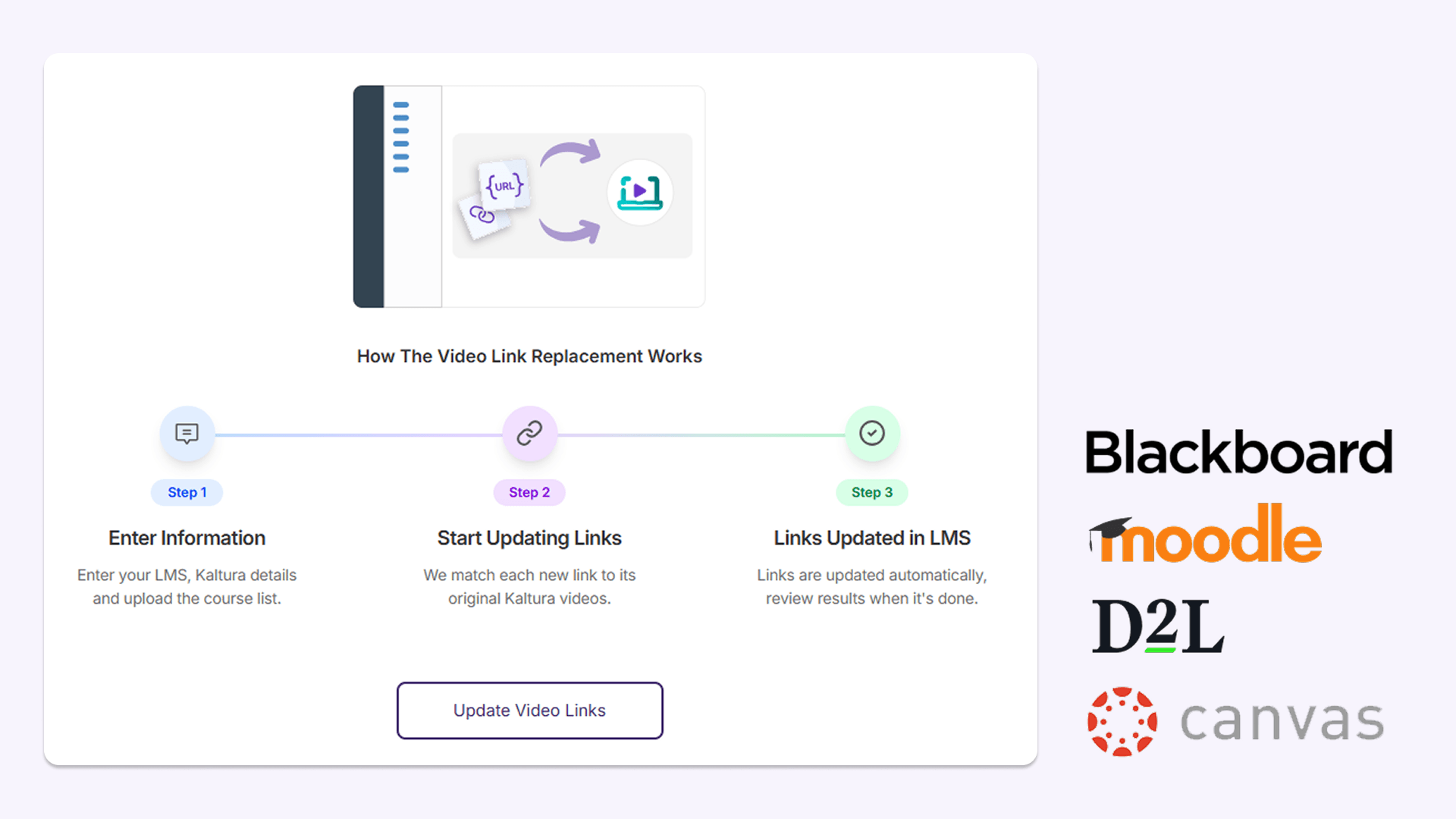
Seamlessly run automated video link replacement in less than 24 hours after migration
After migration to YuJa Lumina, administrators can now run automated video link updates, allowing them to update links and embeds pointing to existing video content in the learning management system (LMS). After this modification, links will automatically be replaced with the migrated video hosted in YuJa Lumina within 24 hours. Video links and inline videos are quickly updated with correct titles in the LMS, improving the workflow for administrators and helping students maintain access to course videos with limited disruptions.
This feature is available in:
Blackboard: YuJa Lumina updates video links and embedded video content across course content and announcements, including content contained within folders.
Moodle: YuJa Lumina updates video links and embedded video content across pages, assignments, lessons, and other course activities.
D2L Brightspace: YuJa Lumina updates video links and embedded video content across course announcements, assignments, discussions, and supported LTI links.
Canvas: YuJa Lumina updates video links and embedded video content across announcements, discussions, assignments, and pages.
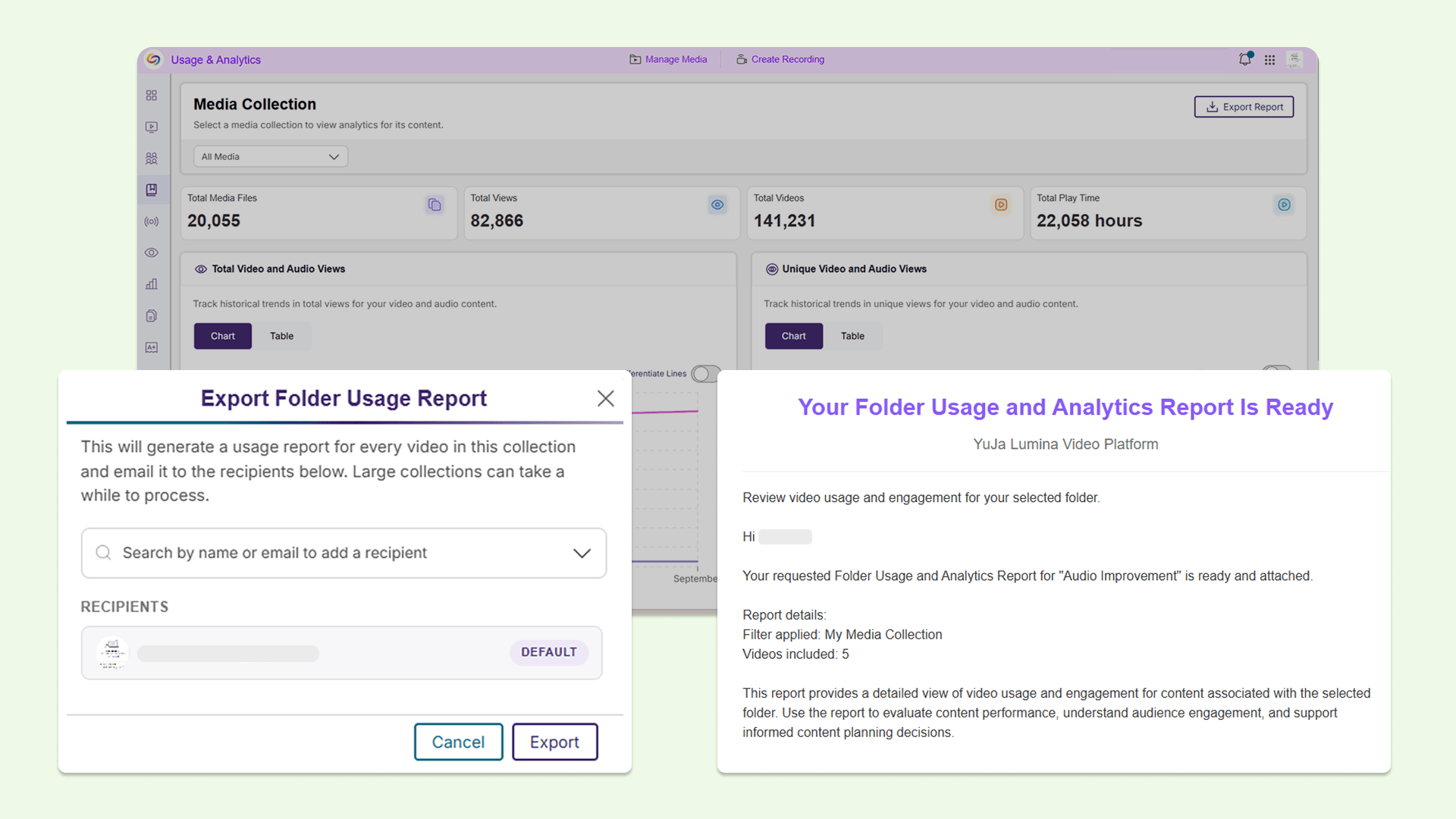
Get more insight into video usage for any folder in the YuJa Lumina media library with an expanded Media Collections report
Instructors and administrators can now download a Folder Usage and Analytics Report for different types of folders, including Media Collections, Course Channels, and institution-wide content from the Media Collections report inside the Admin Panel. These reports provide video-level usage information, such as unique viewers, unique student viewers, average watch completion, and recent activity, making it easier to see which videos students are watching, identify content that may be underused, and understand how video content is being used in one Excel sheet without manually gathering the data.
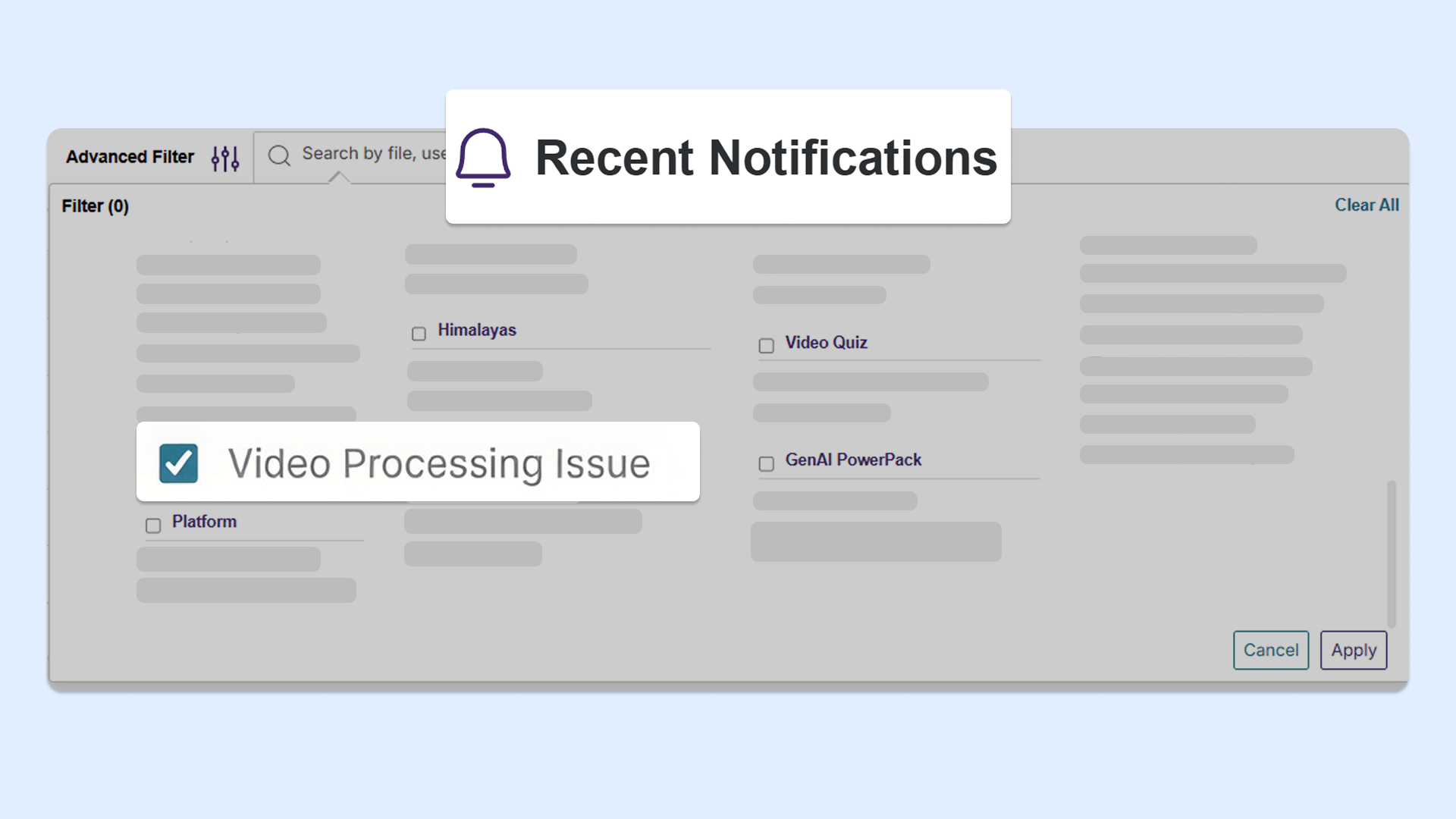
Quickly find recordings that need to be reuploaded with new filter in the Recent Notifications panel
Instructors and administrators can now use a new filter to find recordings that did not successfully upload or process, in the Recent Notifications panel. This makes it easier to identify recordings that need to be reuploaded or reprocessed without needing to manually search through all recordings to identify individual issues.
Simplified the workflow for adding new video clips in the YuJa Lumina Video Editor
We’ve simplified the process of adding new video clips to the timeline, allowing users to speed up workflows with more precise video editing. When adding a video clip to the timeline, the improved Insert Video window now displays the thumbnail, title, and length of the clip that’s been selected. Clearer options are also available to customize the video insertion, including which track to place the clip on, and where to insert the clip on the timeline.
Over the next few weeks, YuJa EqualGround will be adding several new features to refine existing remediation workflows, enhance user-friendliness with plain language configurations, and more.
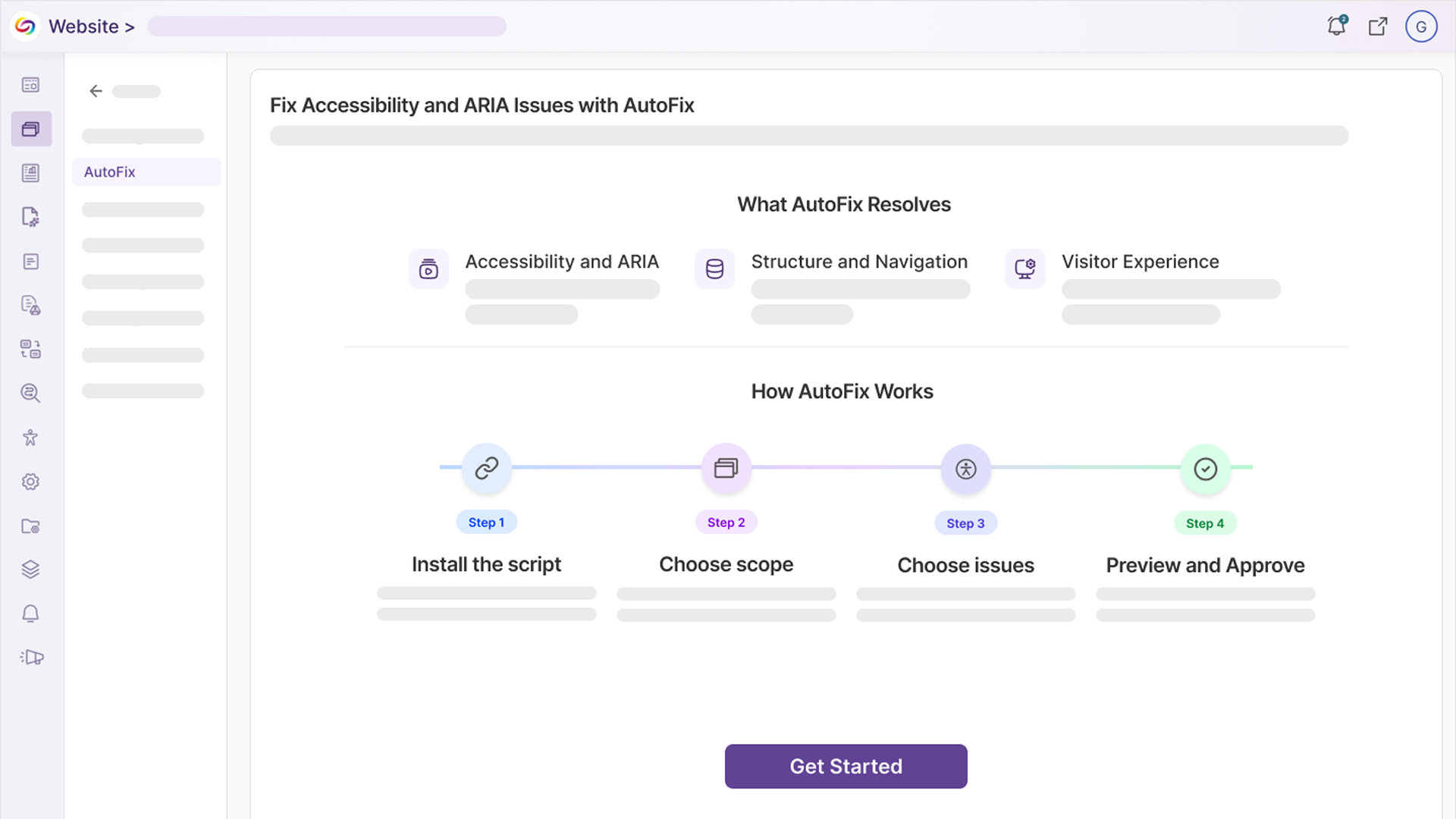
Automatically apply accessibility fixes in real time as users visit your website using YuJa EqualGround’s AutoFix Instant Remediation Module
YuJa EqualGround is introducing AutoFix, an AI-powered tool that automatically remediates accessibility issues directly on your website, without needing to make any changes to your CMS. This automated workflow will save users time and effort needed for manual remediation, and allow users to fully customize how they want to leverage automation to help them reach accessibility compliance.
Users can:
Enable AutoFix for the entire website: YuJa EqualGround will immediately identify and remediate certain accessibility issues detected on the user’s website without needing to configure any manual remediations.
Enable AutoFix for specific web pages: YuJa EqualGround will only fix accessibility issues for priority web pages indicated by the user.
Select specific issues to be remediated: YuJa EqualGround will only apply fixes to specific issues identified by the user.
These are just a few of the issues YuJa EqualGround’s AutoFix can remediate, with more issues coming in future releases:
The web page’s table is not using headers correctly: YuJa AutoFix will automatically correct header attributes in tables, allowing screen readers to navigate through tables properly.
The web page does not inform users about new tabs: YuJa AutoFix will automatically adjust website code to let users know when new tabs have automatically opened, preventing visual disorientation.
The web pages’s focus order is incorrect: YuJa AutoFix will adjust focus order so that screen readers can navigate the site in a logical order.
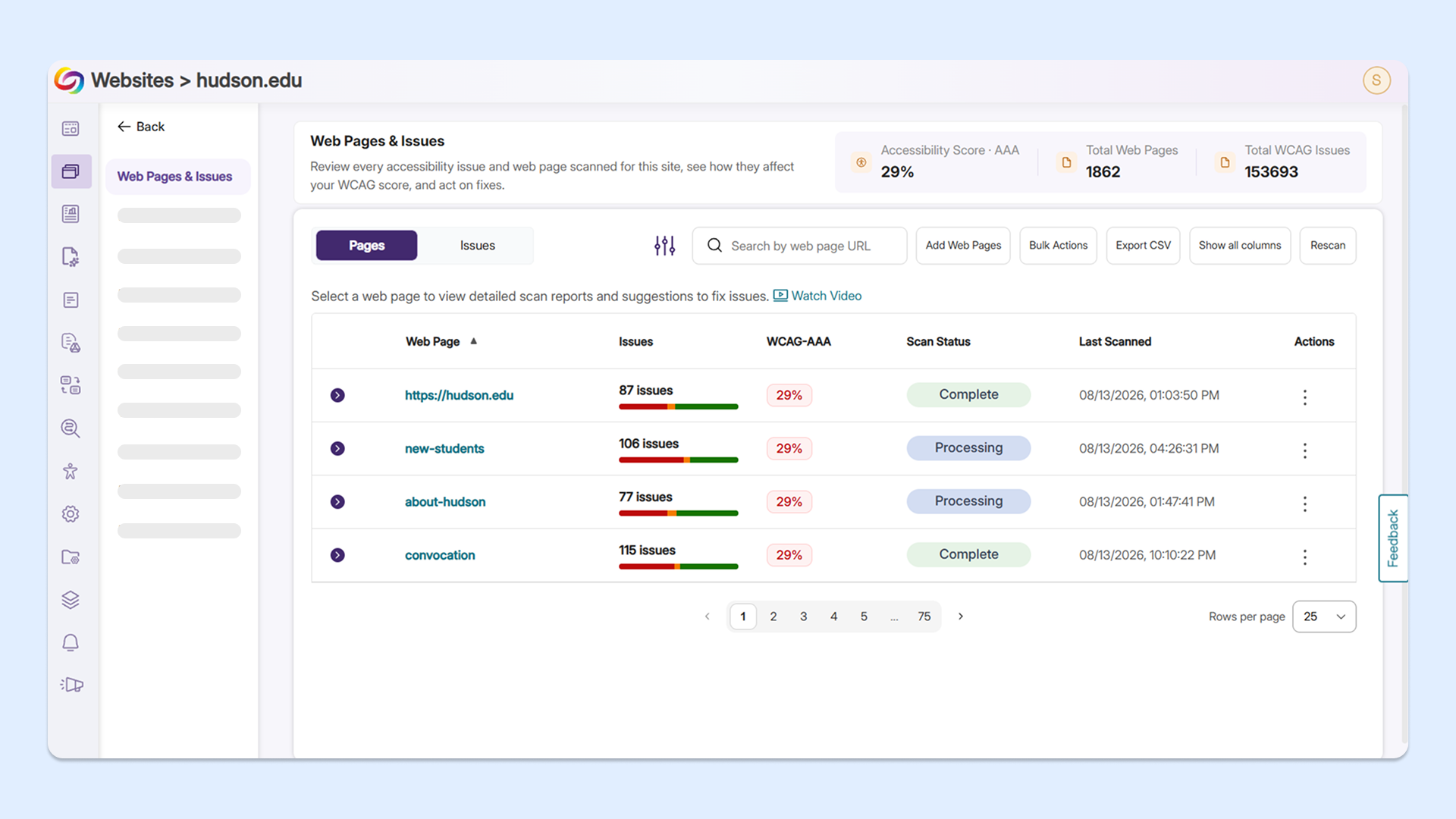
Visualize accessibility issues at a glance on the refreshed Website Overview page
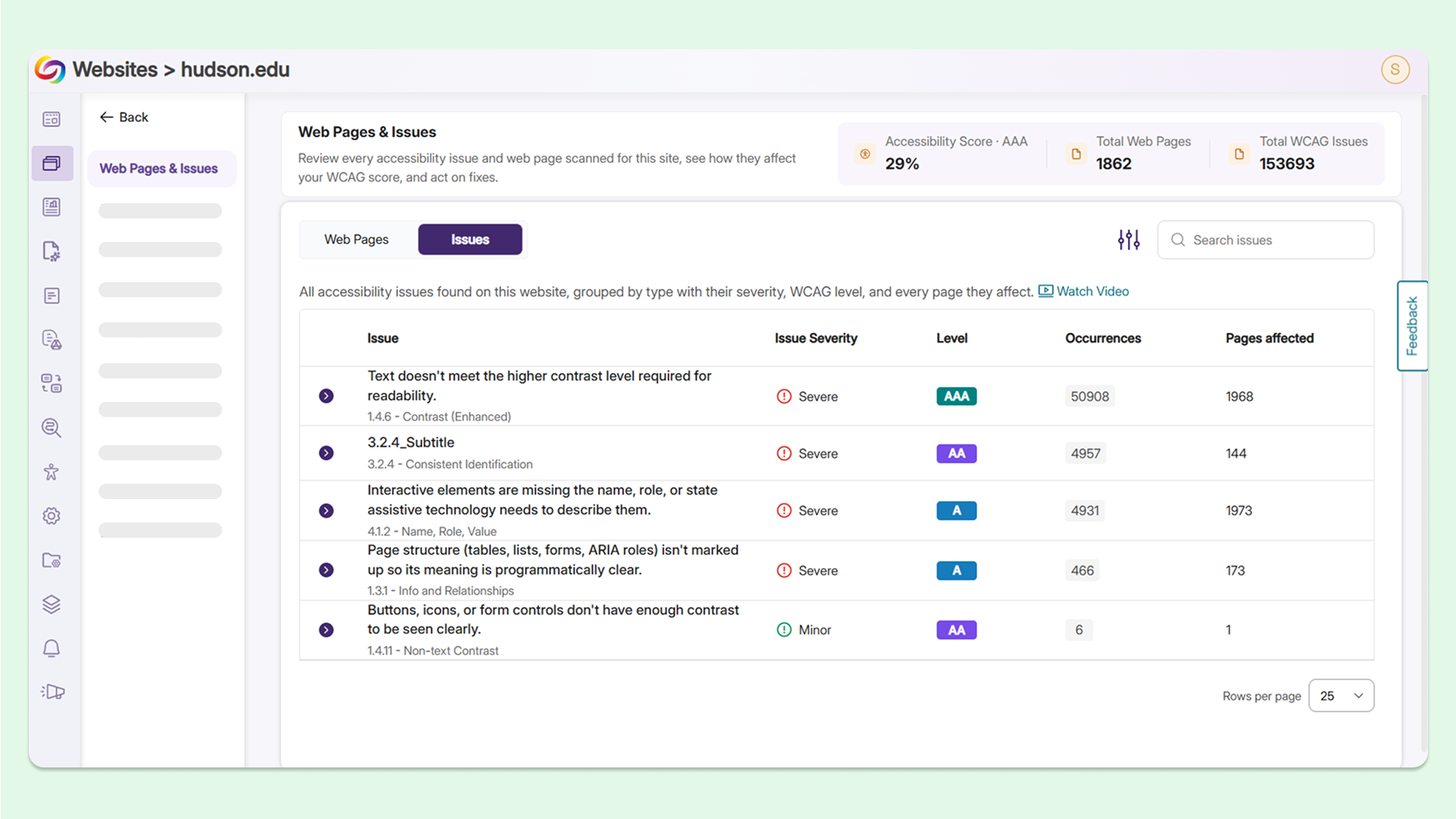
YuJa EqualGround’s new Website Overview page now displays and breaks down the number of issues a single web page has, along with the severity of each issue. Users can immediately see every page impacted by the issue, select an individual web page, and apply fixes, all in the same continuous workflow.
New features include:
A revamped Pages panel: Users can now see all detected accessibility issues for each of their web pages without opening the Issues panel.
A new Issues panel: Users can view all WCAG issues identified on a chosen website and group web pages that have at least 1 instance of a specific issue together.
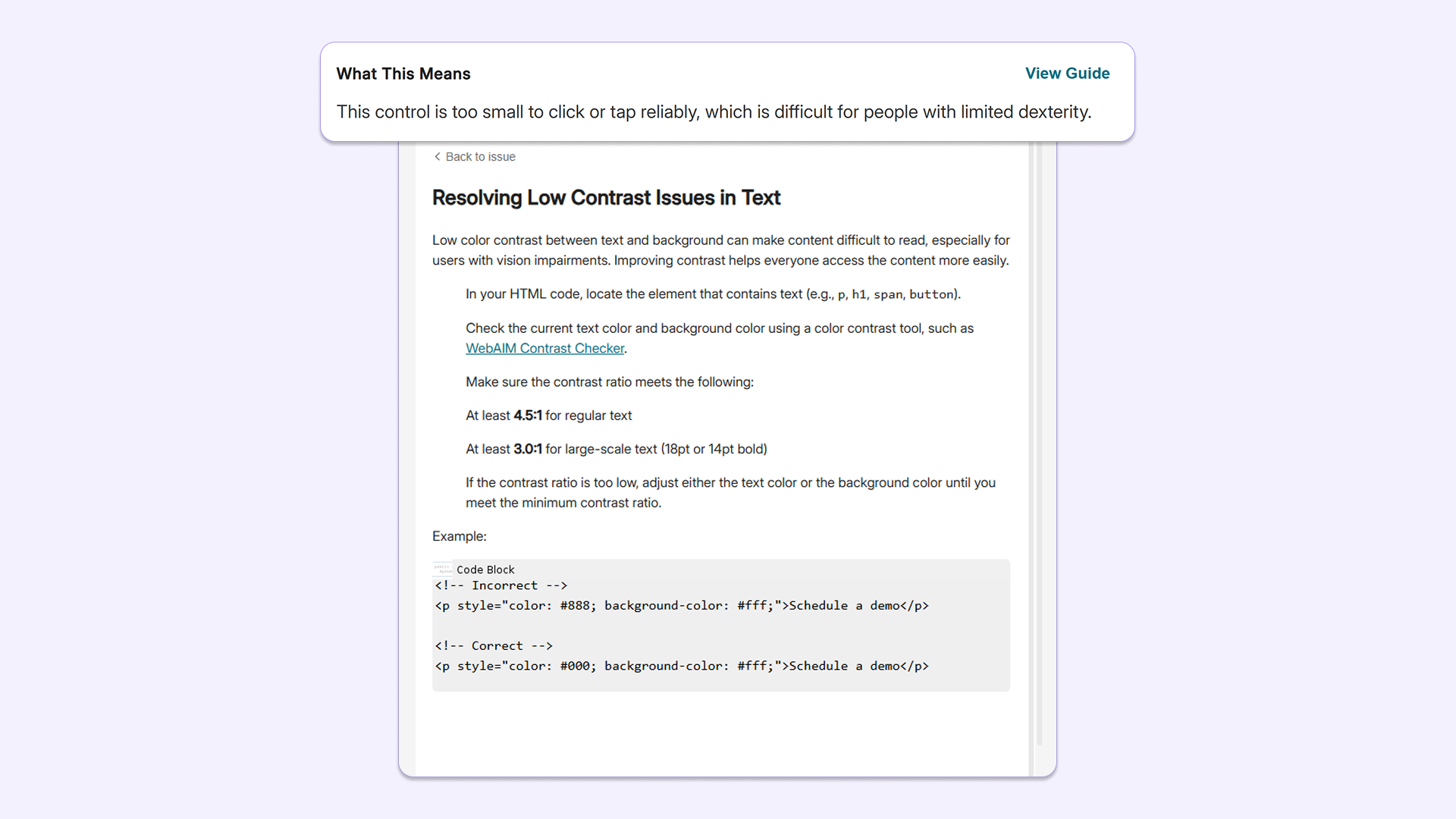
Linked guides for remediation support: Users can now click on an issue and immediately view the YuJa EqualGround guide on how to fix it without leaving their workflow.
Fix compliance issues with new simplified remediation descriptions for any technical background
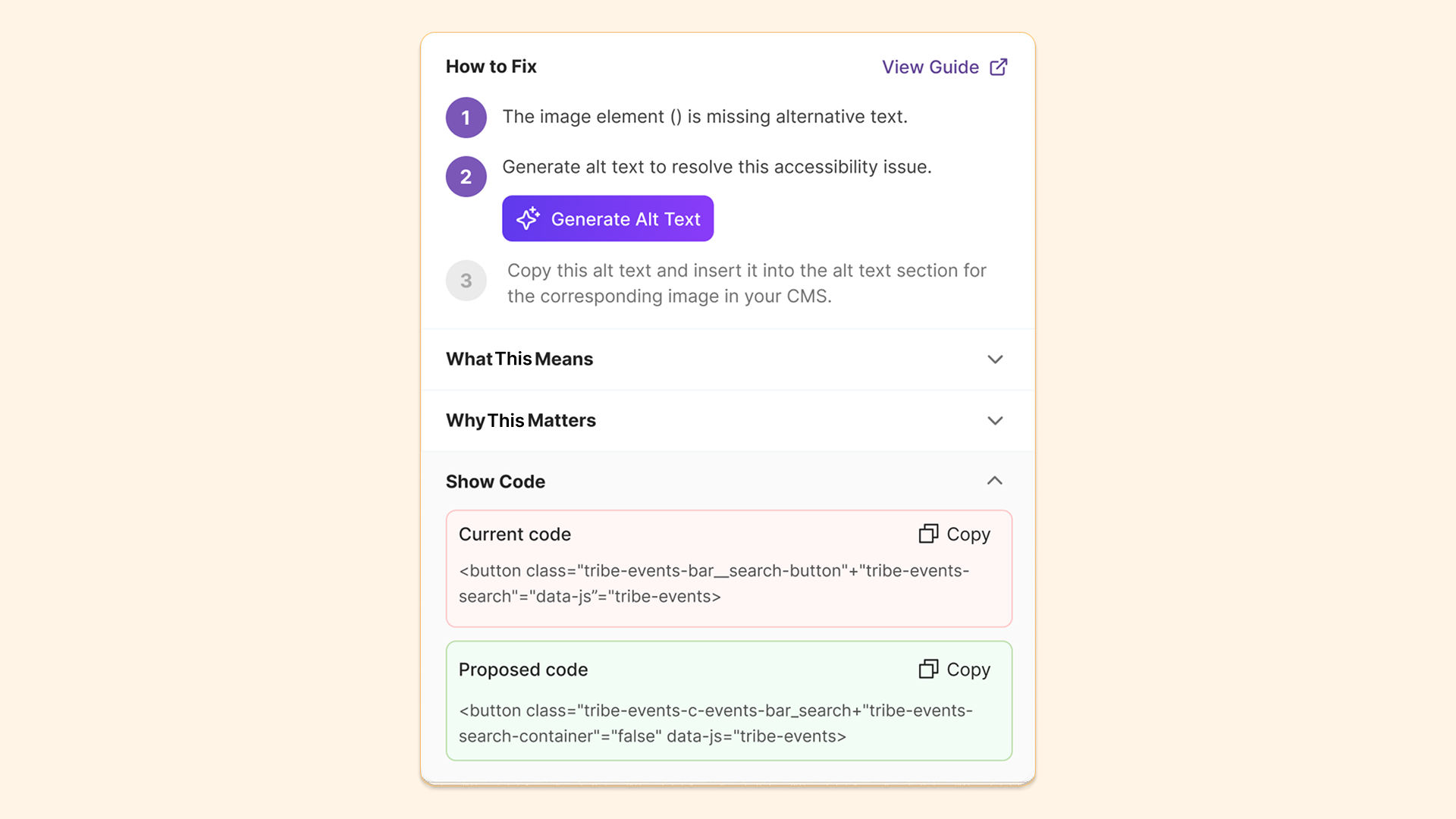
Suggested fixes for certain accessibility issues in YuJa EqualGround, such as poor color contrast, have been upgraded to use plain, easy-to-understand language in addition to raw-code snippets. This feature will help users with different technical backgrounds better understand the steps for resolving accessibility issues without deciphering complex code.
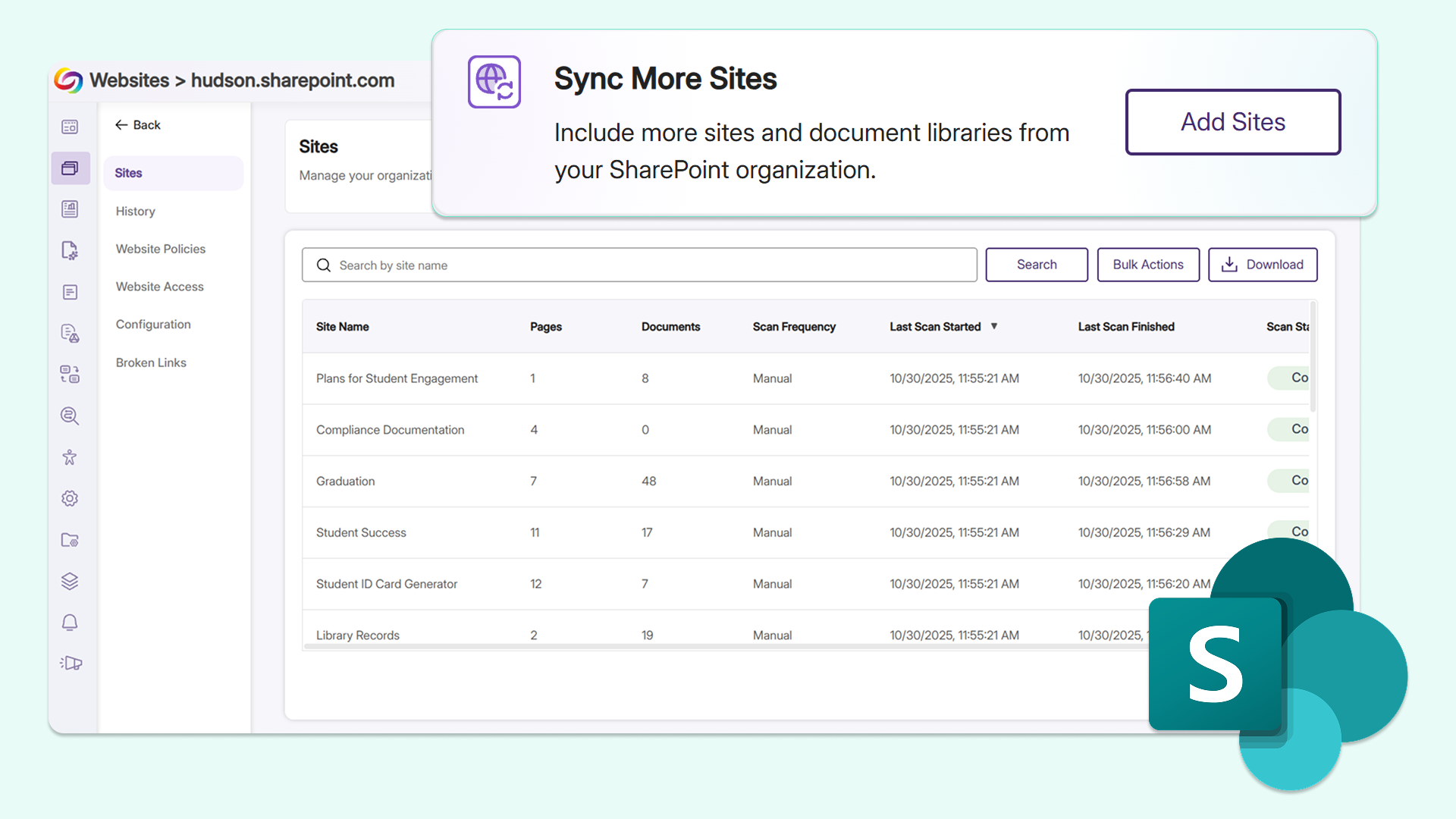
Add and synchronize document libraries to SharePoint sites without rescanning
Users can now directly add and sync document libraries to SharePoint sites that have already been scanned within YuJa EqualGround. This allows users to seamlessly update their sync settings and expand their scanning scope to include any documents without having to delete and re-add the entire SharePoint site, eliminating repetitive workflows.
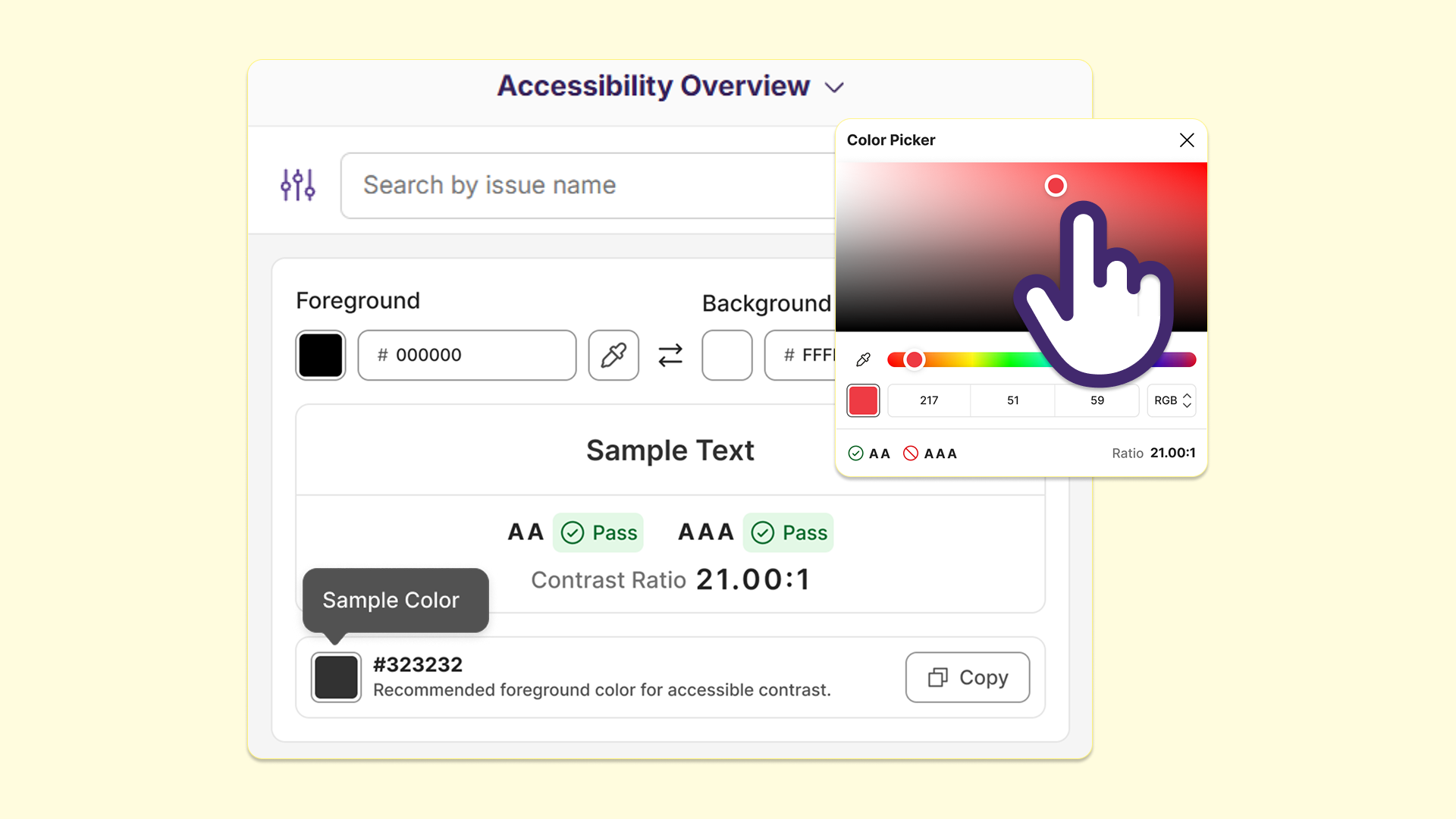
Assess WCAG color contrast compliance for websites in real time with the new Color Contrast panel
YuJa EqualGround is introducing a Color Contrast panel to the browser extension, helping users check whether the foreground and background colors on their website pass WCAG’s minimum contrast ratios. With options to select a specific conformance level, users can validate color choices and make informed changes on any page to align with their institutional accessibility standards, all without installing a separate third-party contrast tool.
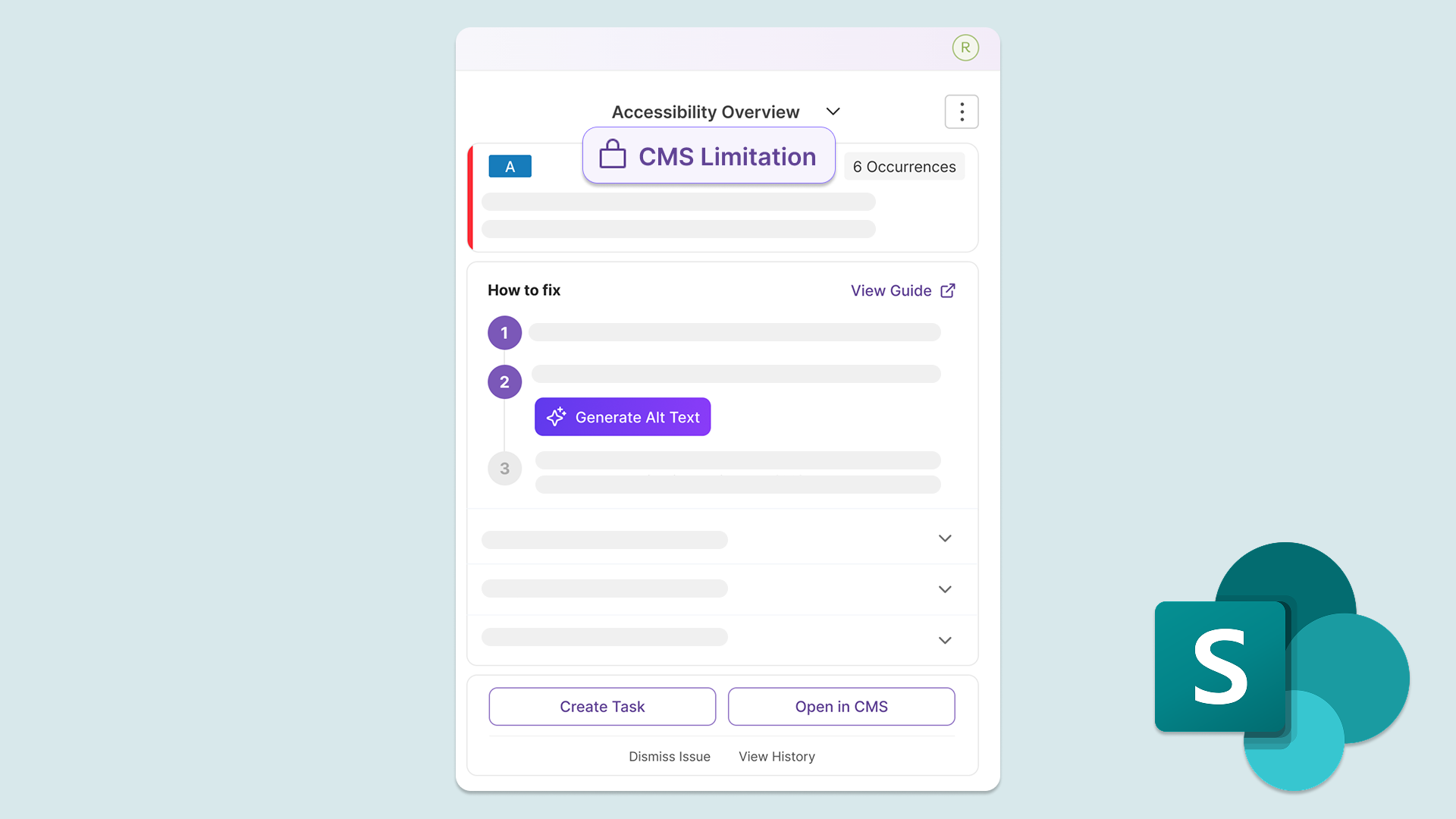
Streamline remediation for SharePoint sites with new SharePoint template identification badge
YuJa EqualGround now provides a CMS Limitation label in the Accessibility Overview for SharePoint sites, helping users easily identify whether the accessibility issue flagged is due to a SharePoint template used on the website. This eliminates confusion for users and allows them to dismiss issues related to SharePoint templates that cannot be fixed in YuJa EqualGround, helping them have a better understanding of their accessibility compliance.
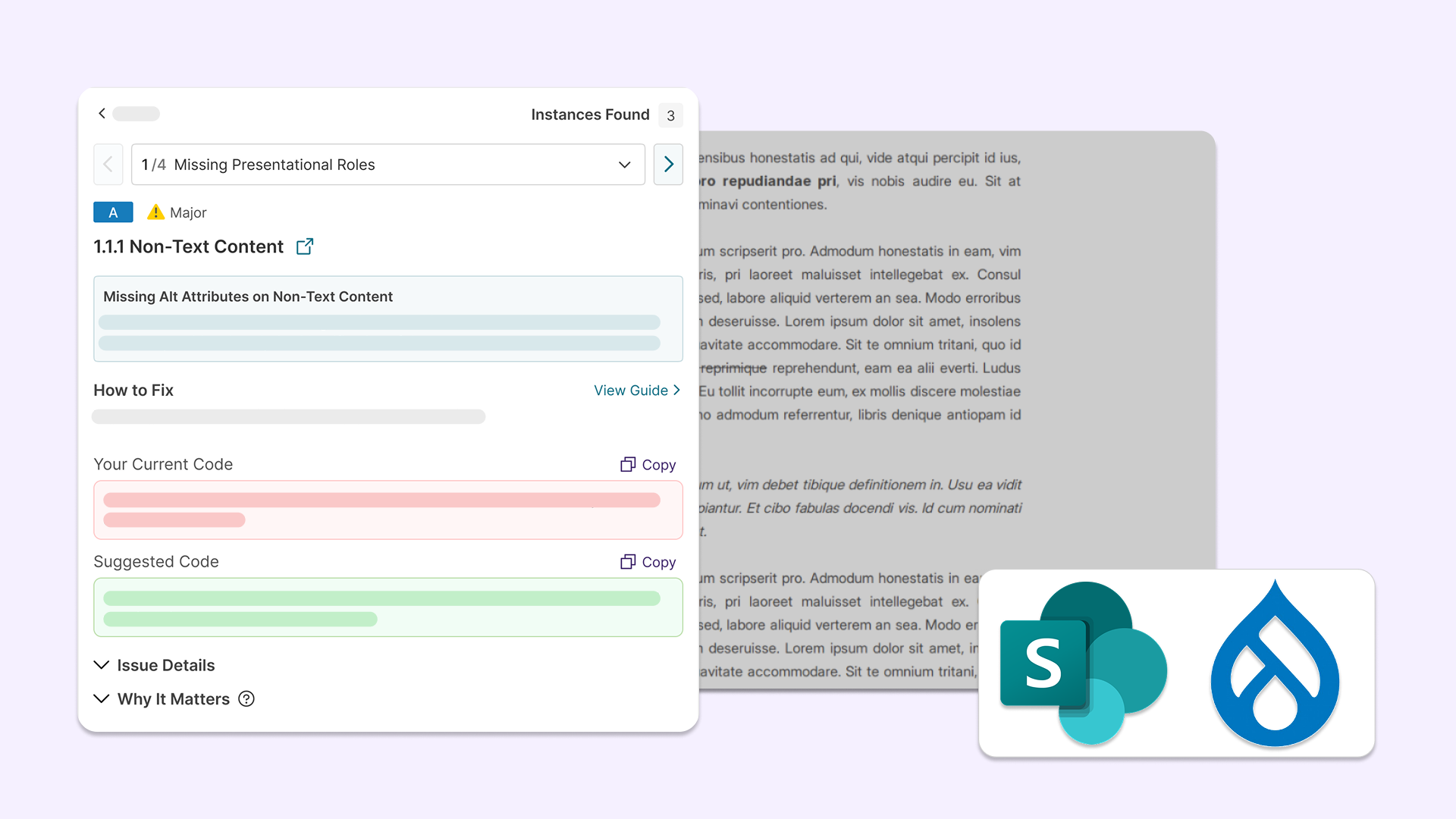
Stay in sync with Drupal and SharePoint CMSs through automatic rescans after content updates
YuJa EqualGround will now automatically rescan documents and web pages when an update is detected in Drupal and SharePoint, eliminating the need for users to click Rescan.
YuJa EqualGround will:
Automatically activate document scan: When an already-scanned document is replaced in the CMS, the document is automatically rescanned, and the updated accessibility score and issues will appear in the Documents tab without needing to click Rescan.
Automatically activate page scan: When an already-published page is updated, the page is automatically rescanned, and its accessibility score and issues will be updated to reflect the changes.
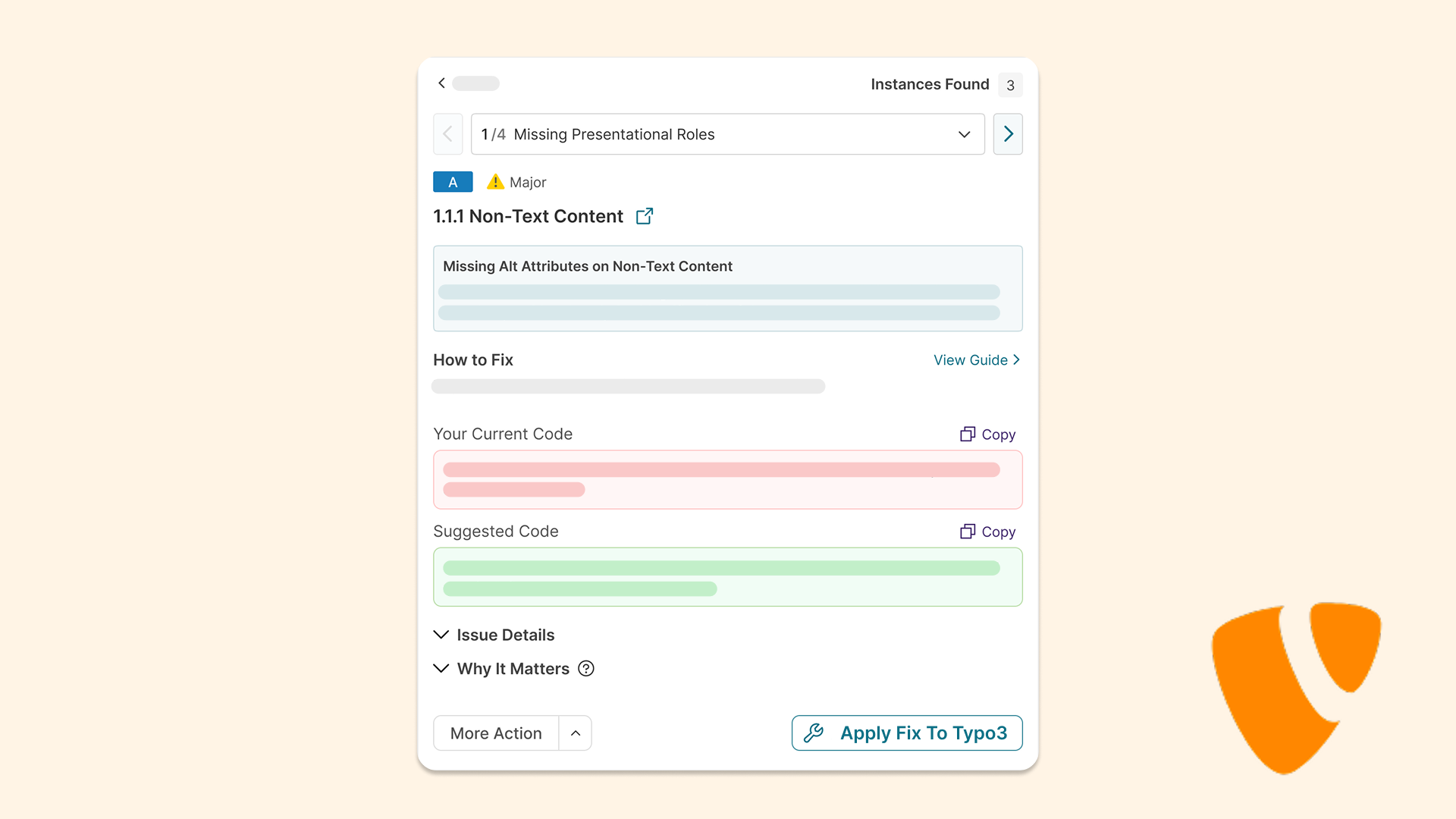
Streamline remediation with automatic writeback for documents and pages in TYPO3
Using the updated API integration with TYPO3, users can now remediate accessibility issues identified by YuJa EqualGround with automatic writeback for their documents and web pages directly in the CMS. This eliminates the need for users to switch between different platforms to validate their changes.
Users can:
Remediate documents: Users can apply remediation fixes to their documents directly in TYPO3, which will automatically be written back in the CMS. If they need to create an alternative format, they can do so through the Alternative Formats menu.
Remediate web pages: Users can apply remediation fixes to their web pages directly in TYPO3, which will automatically be written back in the CMS. Clicking Rescan will confirm that the fix has been applied to the page.
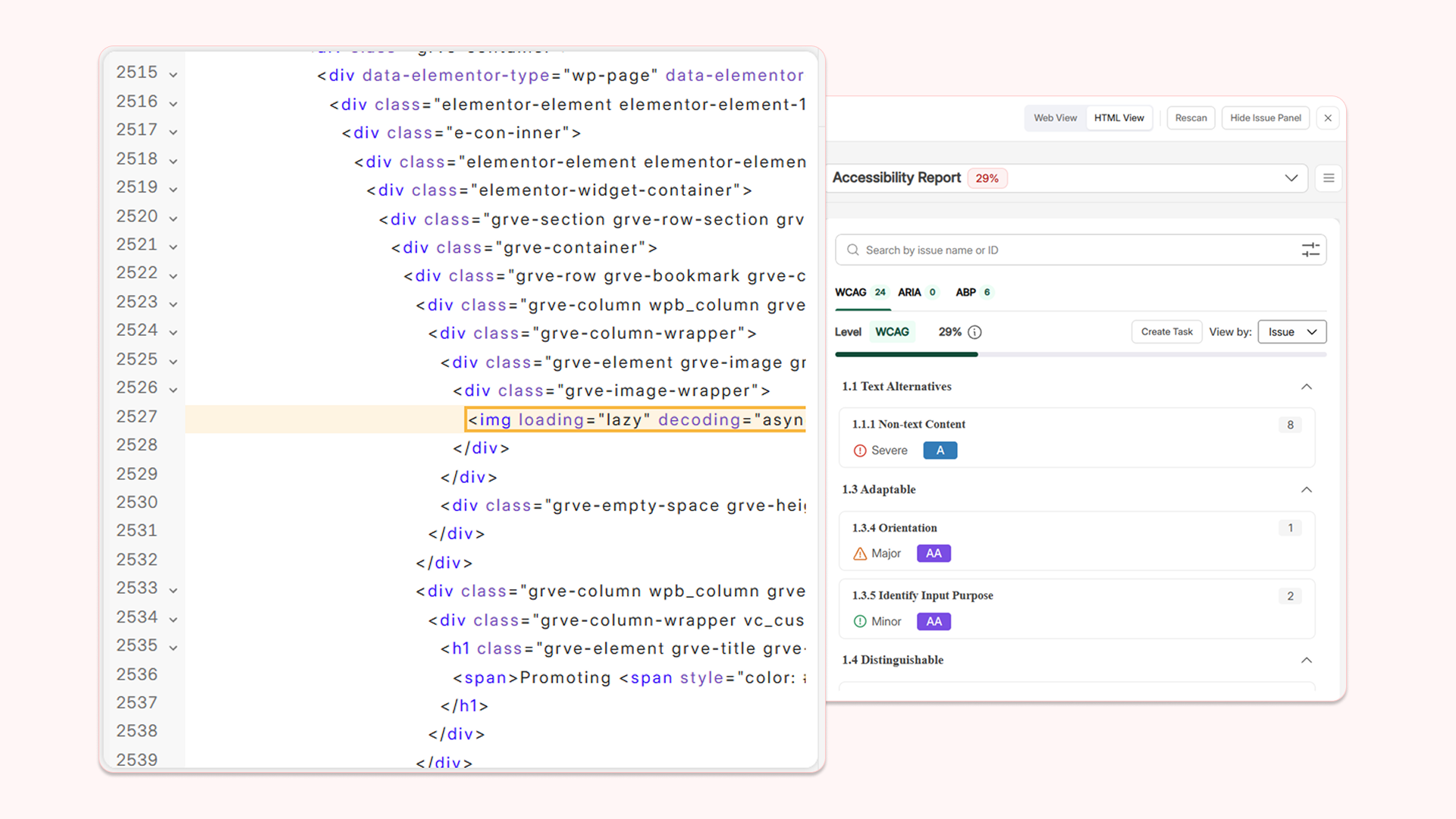
Locate issues easily with syntax highlighting in HTML View
HTML View in YuJa EqualGround’s Accessibility Overview for each web page has been upgraded with several features to enhance code readability and efficiency when remediating code-related issues.
Key features include:
Syntax-highlighted code: Source code is now displayed in different colors based on its term category.
Proper indentation: Code is now indented for cleaner HTML formatting, helping users easily identify and differentiate between different sections.
Line numbers: Code lines are now numbered, helping users instantly identify the line where there may be an error.
Collapsible sections: Entire code sections can now be collapsed, reducing visual clutter.
Findbox: A findbox is added for users to search for a specific line of code to remediate.
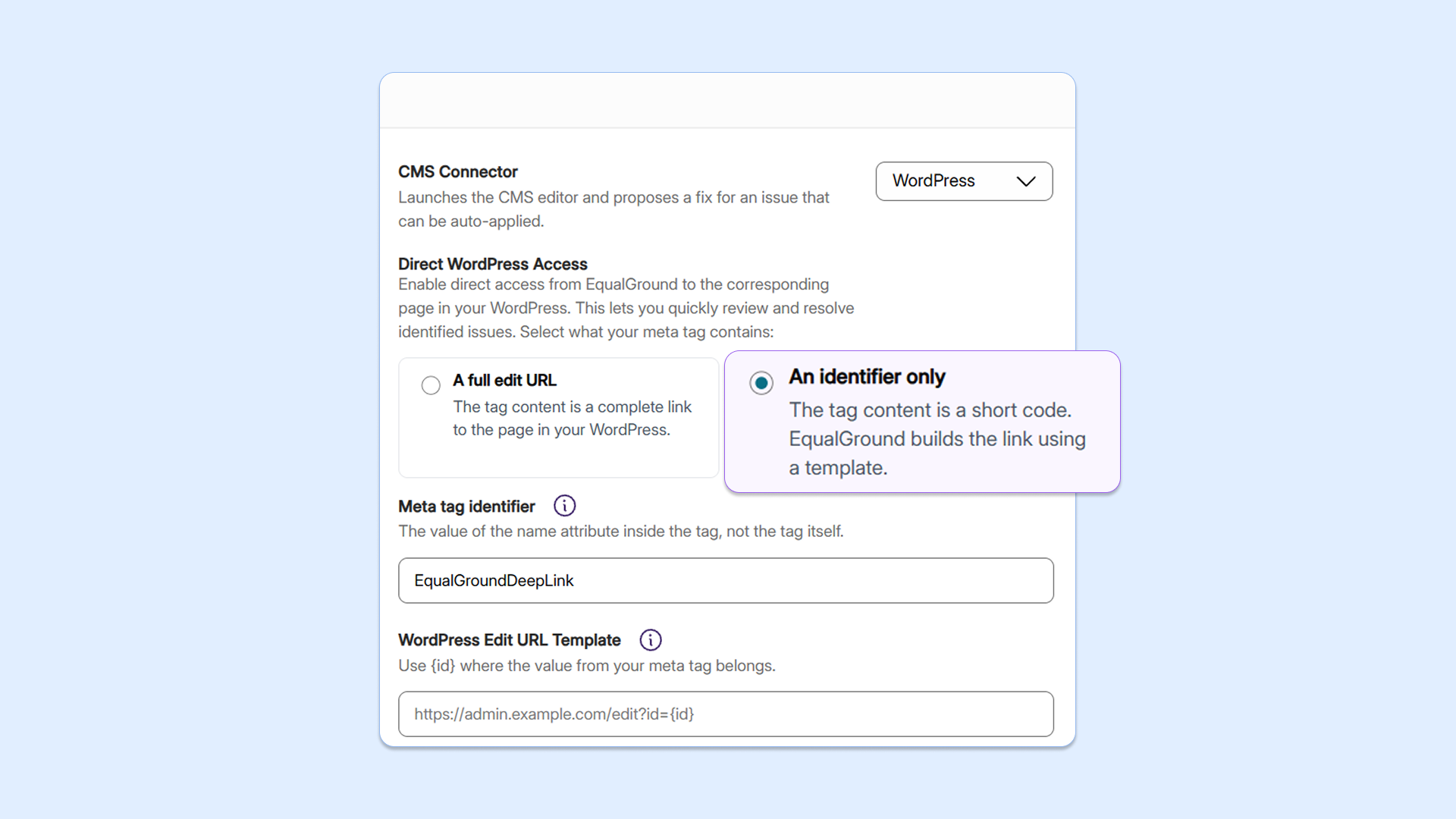
Protect sensitive information with URL reconstruction for CMS-related remediation
Users can now configure YuJa EqualGround to accept an edited CMS link or unique identifier to avoid exposing confidential information related to their web assets. Users are able to configure a URL template describing the shape of their CMS link. The platform will then hold the full URL as hidden information and reconstruct it internally, giving users the same one-click deep-link experience without exposing sensitive admin URLs on public web pages.
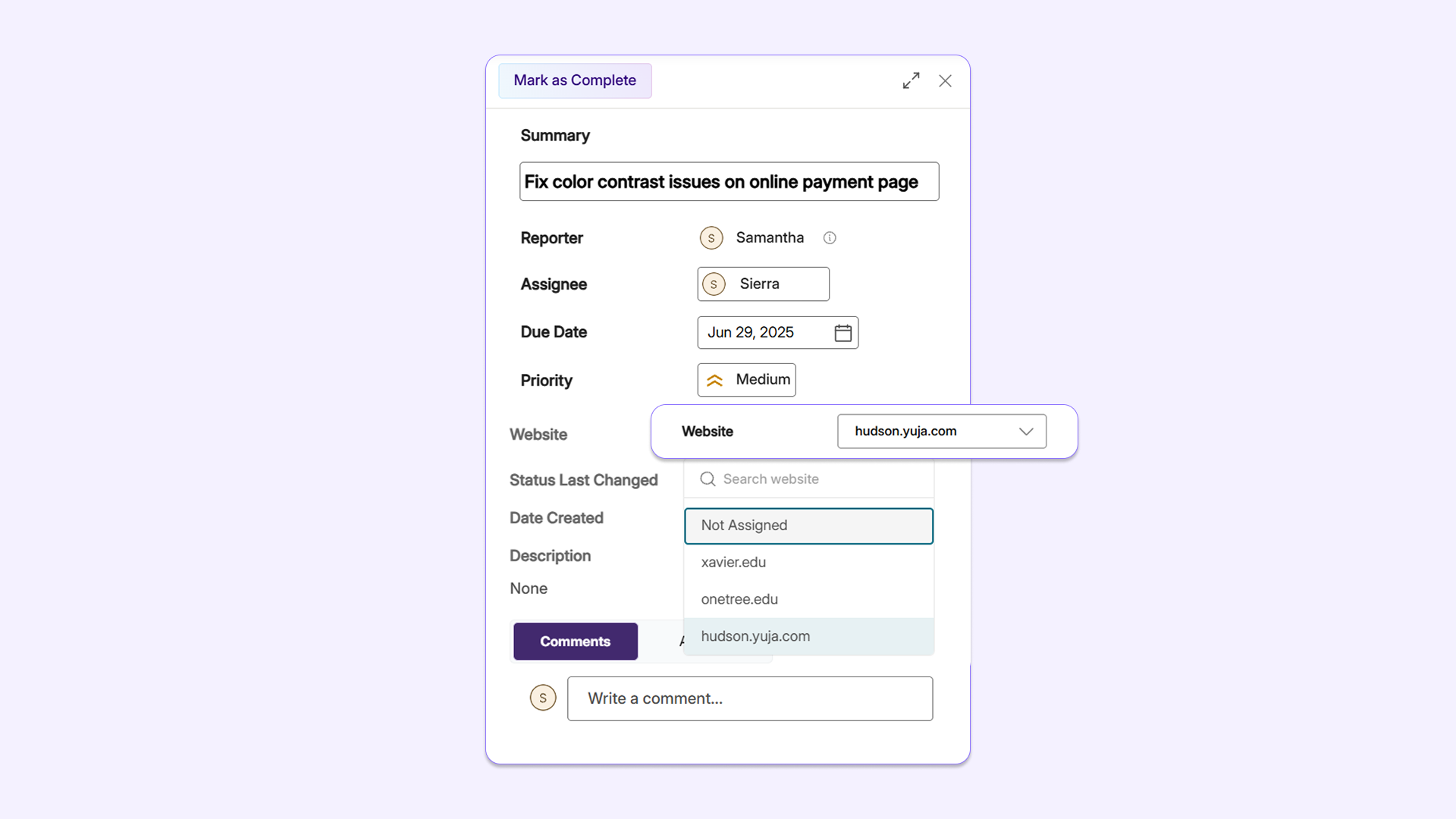
Tie workflow tasks to specific websites for helpful context with the new Website Picker
With YuJa EqualGround Workflow Orchestration’s new Website Picker, users can now assign a website to any task in the platform, providing assignees with more context about the issues that are identified and where they were discovered.
Customize display scope with pagination options across all tables in YuJa EqualGround
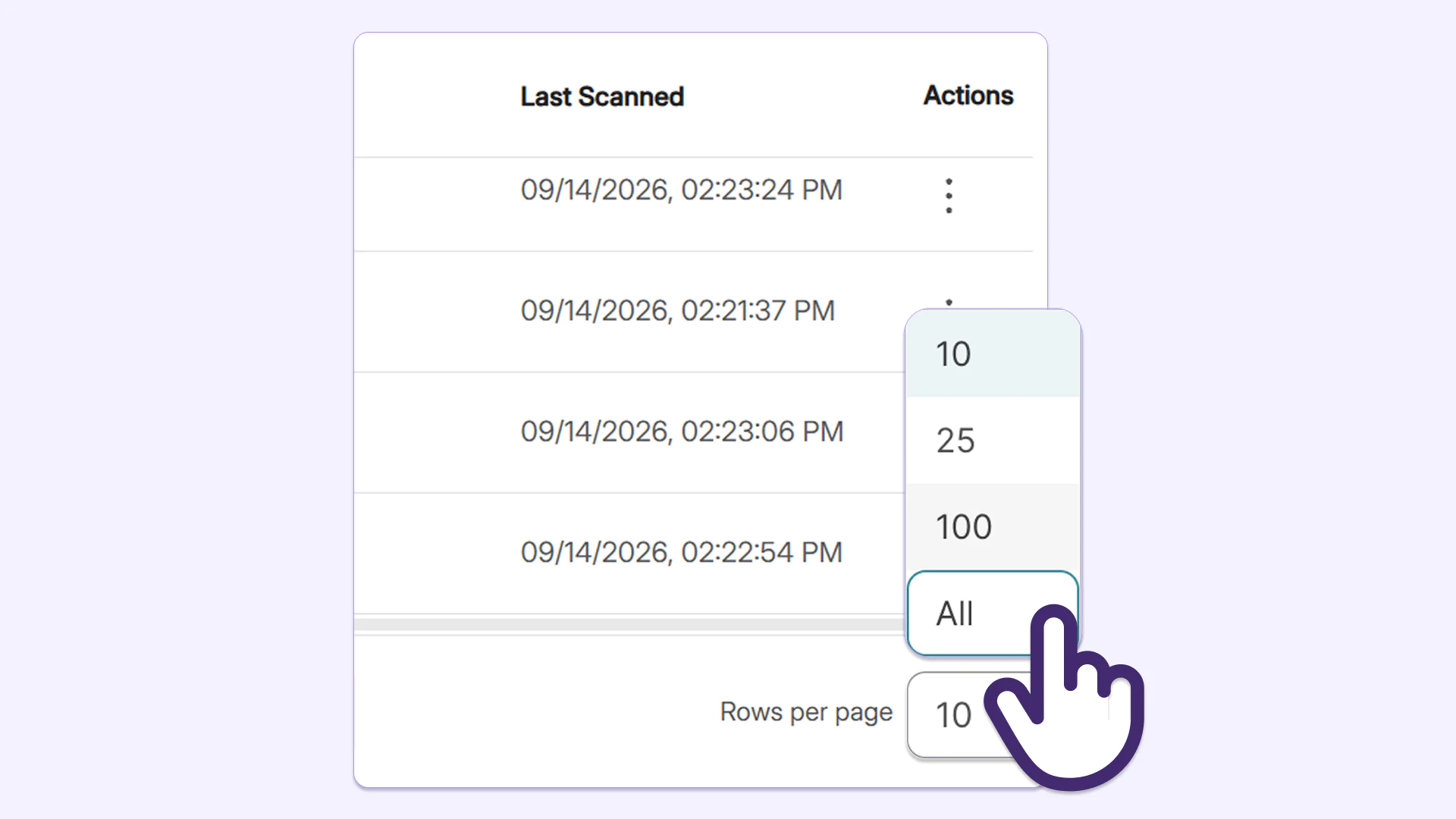
Users can now adjust page size to see all of a website’s issues with the new page-size configuration options. Users can choose to view up to 10, 25, 100, or all rows within issues tables according to their size adjustment, reducing the amount of clicks needed to review the entire list.
Easily update user information in Roster Management without recreating accounts
YuJa EqualGround now allows administrators to update a user’s first name, last name, and email address from Roster Management without manually deleting and recreating the user. This preserves all existing data, including roles, reports, and accessibility settings associated with the account, offering an intuitive and simple way to manage user information.
YuJa Panorama v26.7.0 Release
Over the next few weeks, YuJa Panorama will be adding several new features to make remediation faster and easier for administrators, including the ability to exclude files from being scanned, helpful alert messages to resolve document replacement errors, and much more.
Exclude or block files for more control over what is scanned by YuJa Panorama
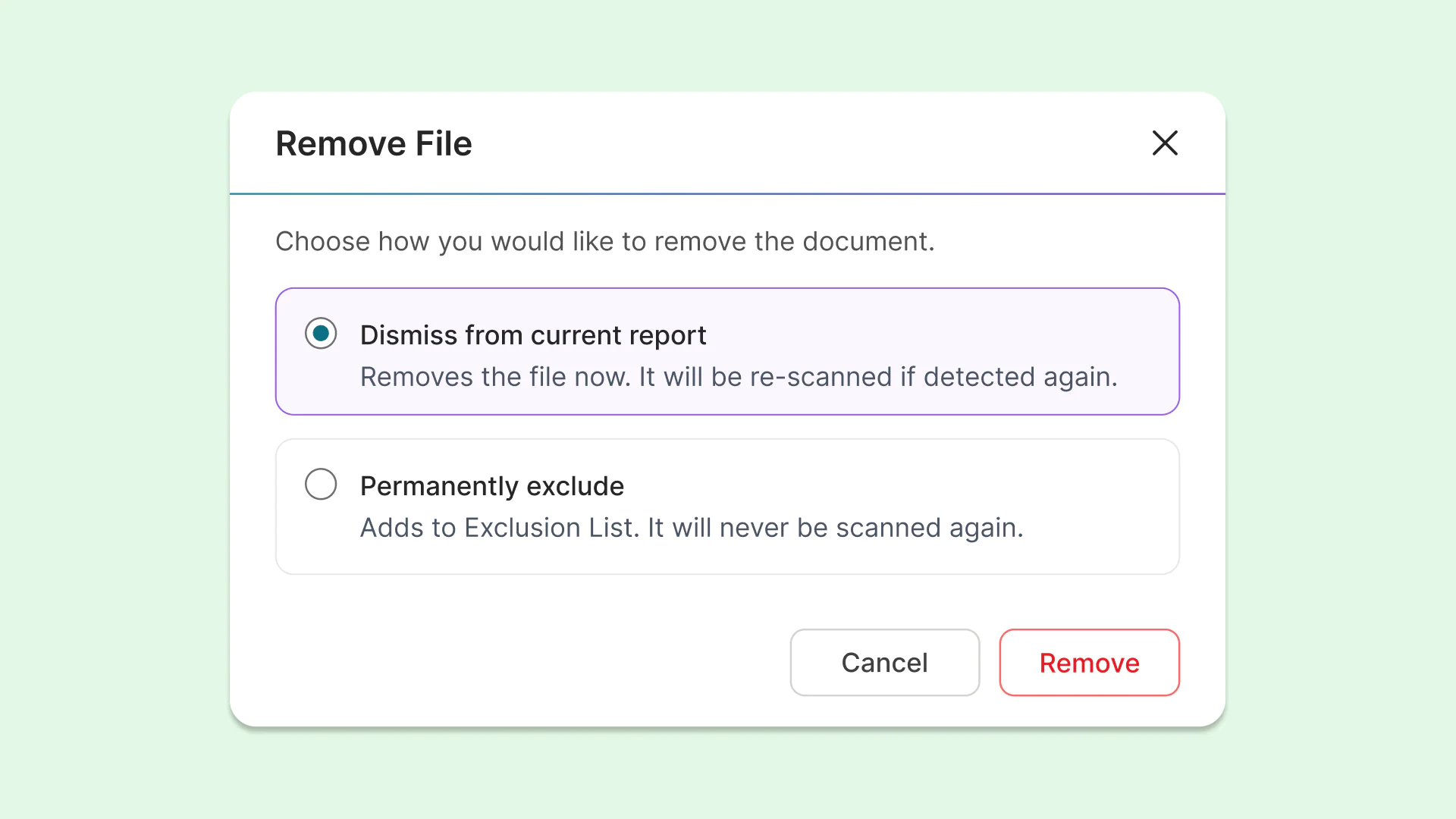
Instructors and administrators can now dismiss or permanently remove files from being scanned or re-scanned by YuJa Panorama, allowing them to have more control over how their course accessibility is calculated. This protects overall course scores when certain files should be excluded.
The options for removing files include:
Dismiss from current report: Removes the file for the current report, but it will be re-scanned if detected again during a future scan.
Permanently exclude: Adds the file to an exclusion list, ensuring it will never be scanned again. These files will display a unique icon for quick and easy identification in the future.
Establish consistency for umbrella institutions by automatically applying settings to sub-institutions
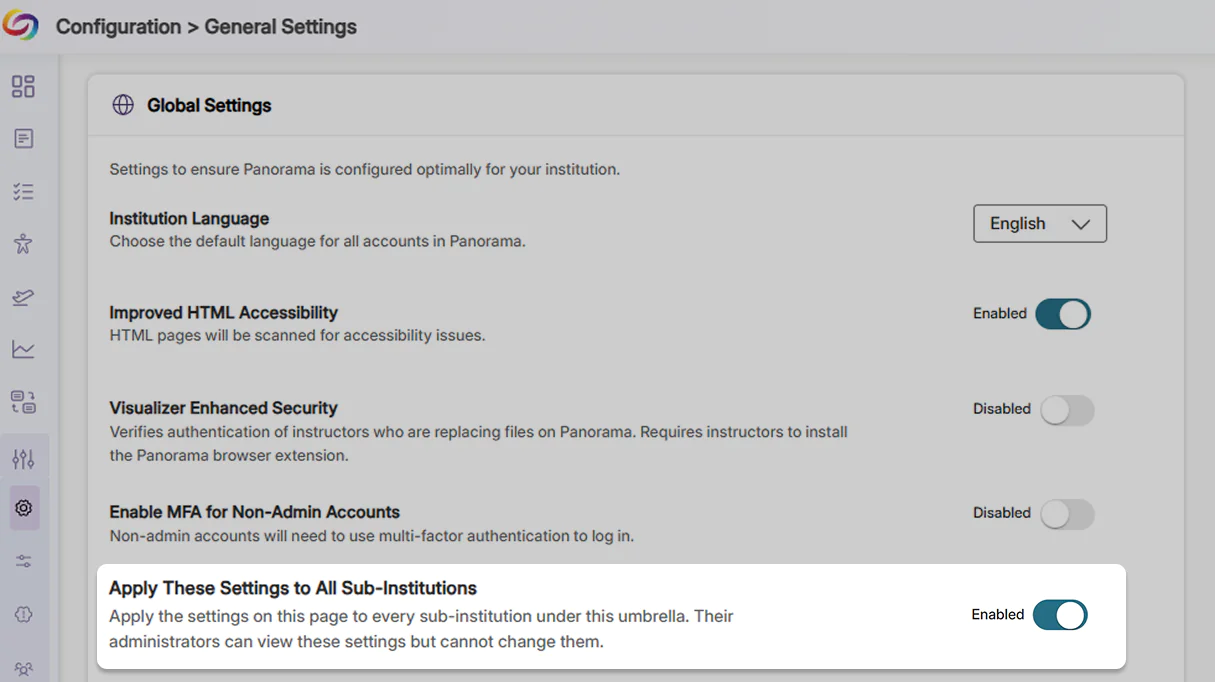
Institutions with multiple LMSs can now apply and control institution-wide settings, configurations, and access protocols for all their member institutions. These settings cannot be altered by sub-institutions, helping eliminate redundant setup work, maintain compliance consistency, and ensure that any necessary updates are automatically applied and enforced across the entire institution.
Admins now have more granular control over when instructors get notified about required course remediation
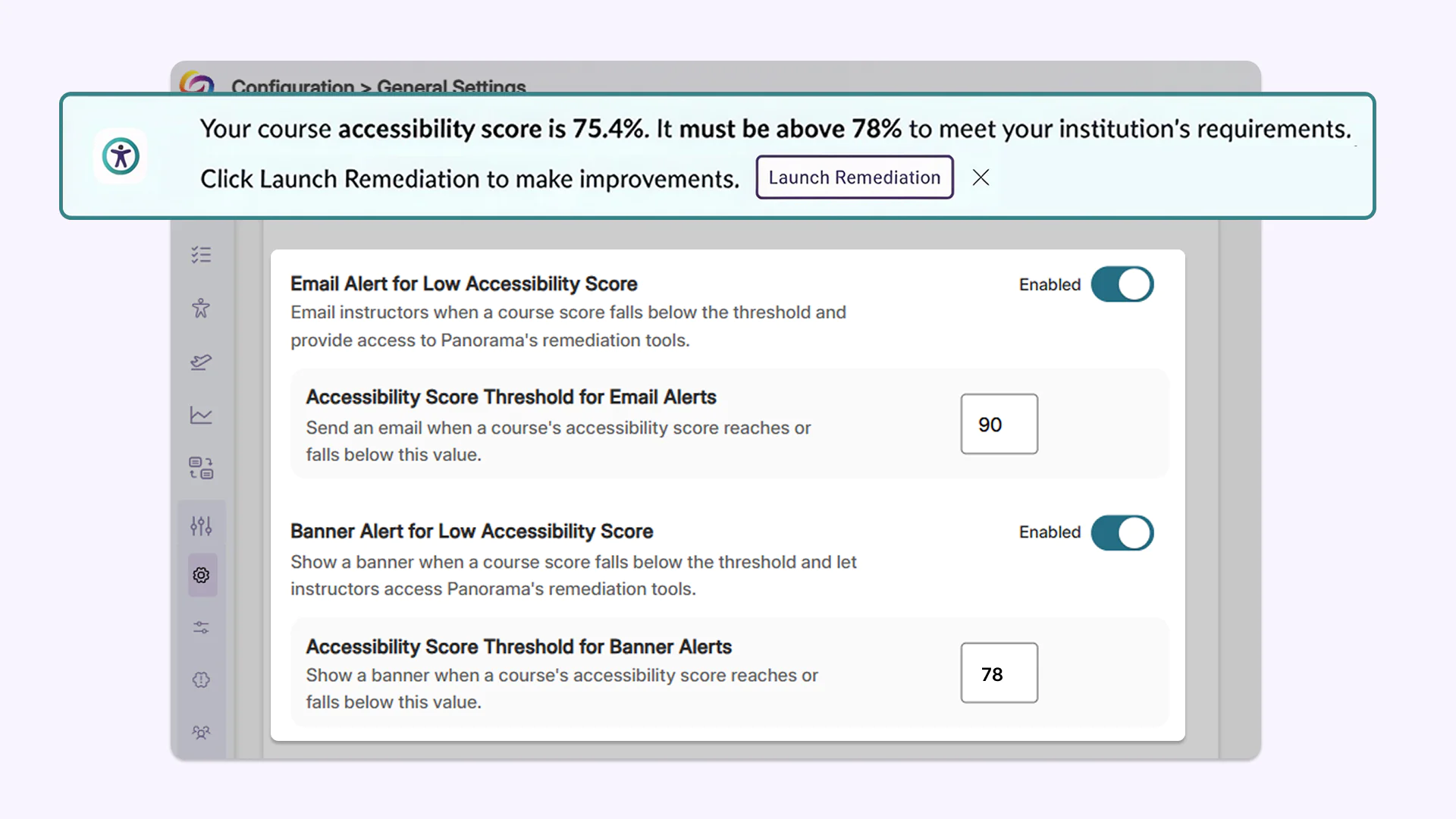
Administrators can now define accessibility score thresholds to trigger quick remediation banner alerts and notification emails when course scores fall below target levels. These thresholds can be set institution-wide or customized and overridden at the individual course level, ensuring instructors are automatically notified when remediation is required.
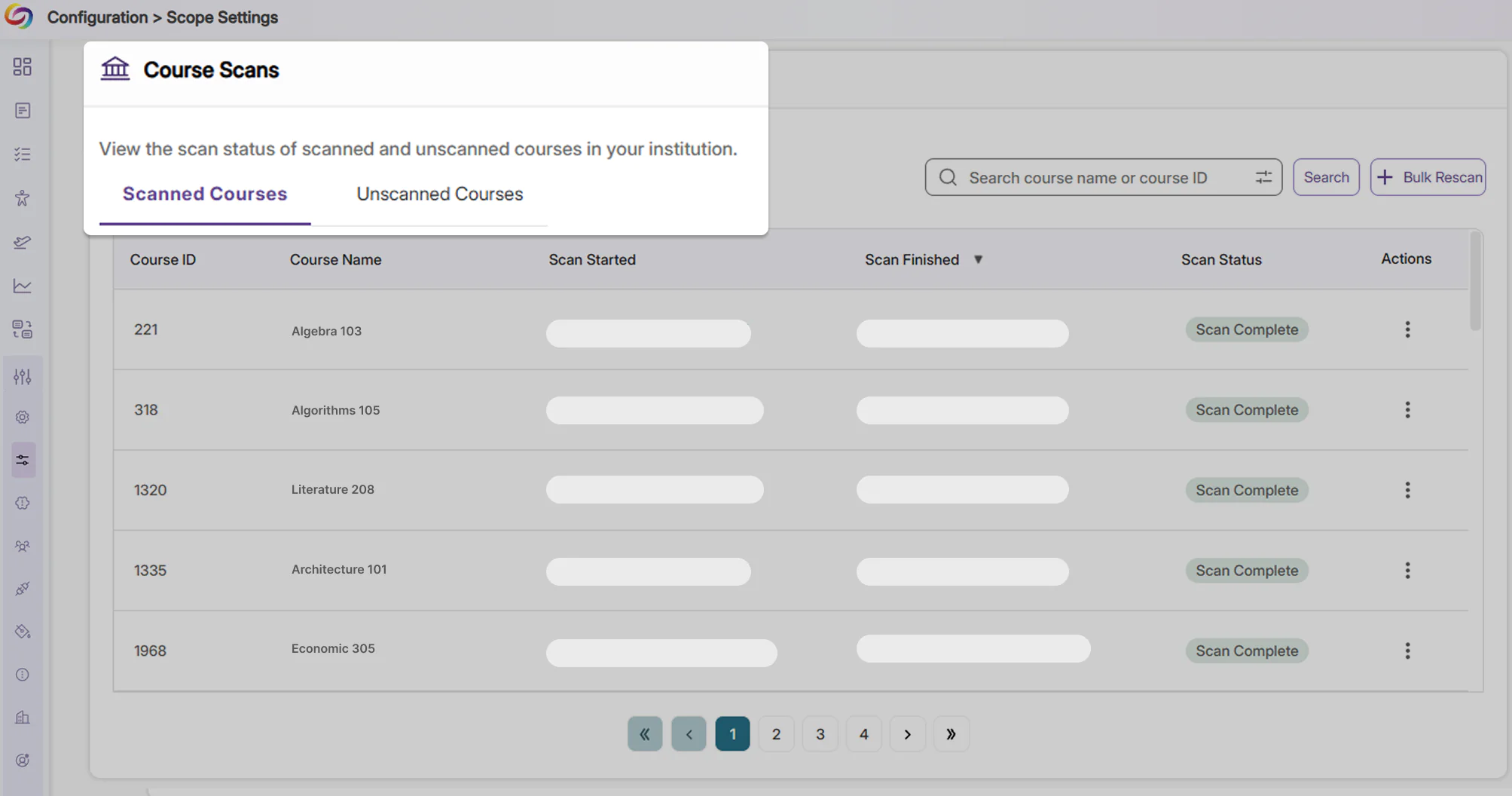
Clarity over course scan status using new dedicated tabs
Courses are now separated into tabs indicating whether they have been scanned, clearly outlining courses that have not been scanned due to inactivity. This helps eliminate confusion for administrators regarding courses that have not yet been processed.
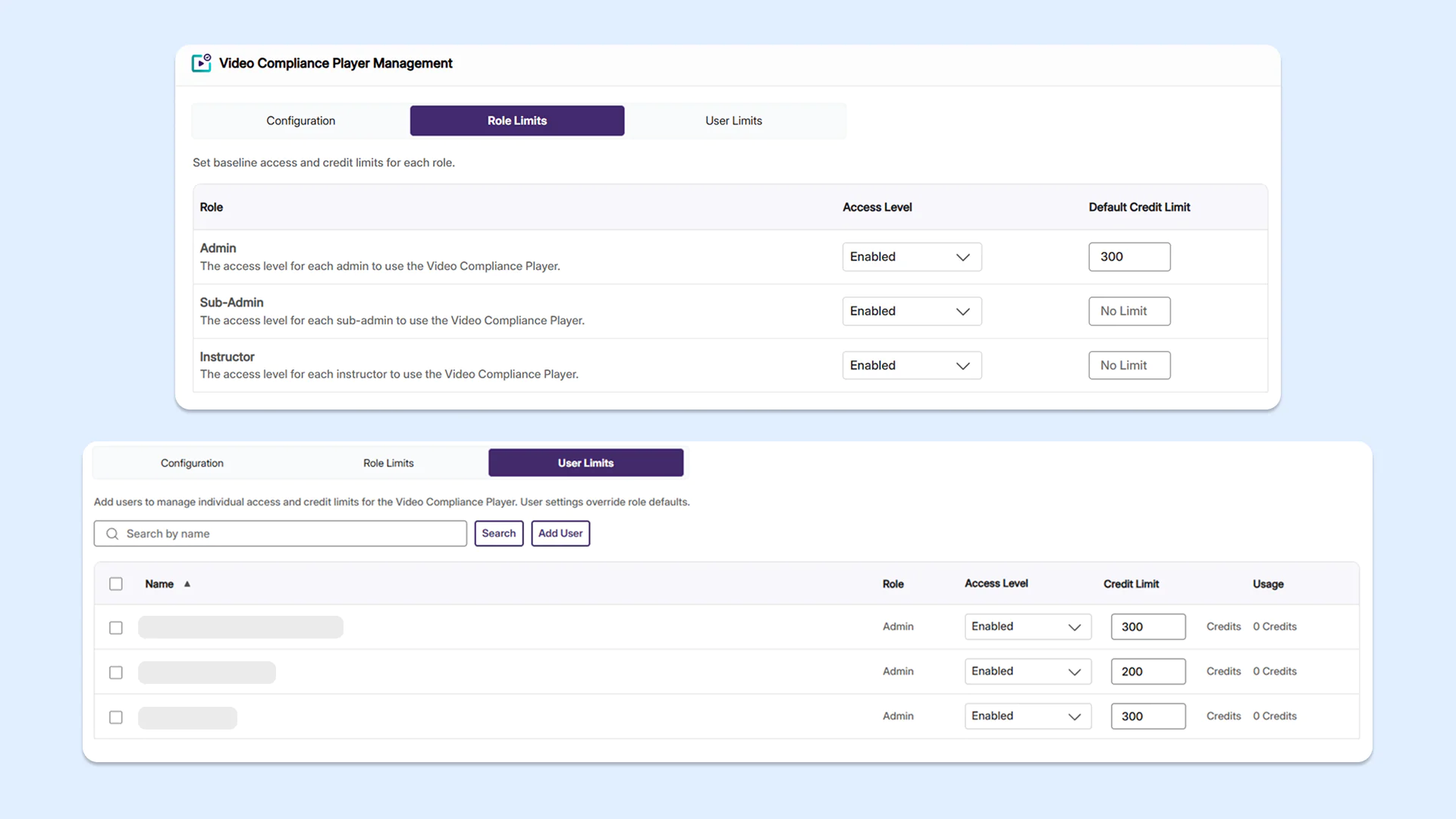
Enhanced user management and credit tracking in the Video Compliance Player
Administrators can now set role-based and user-level access limits for YuJa Panorama’s Video Compliance Player, helping them better manage platform credits and tool usage across their institution.
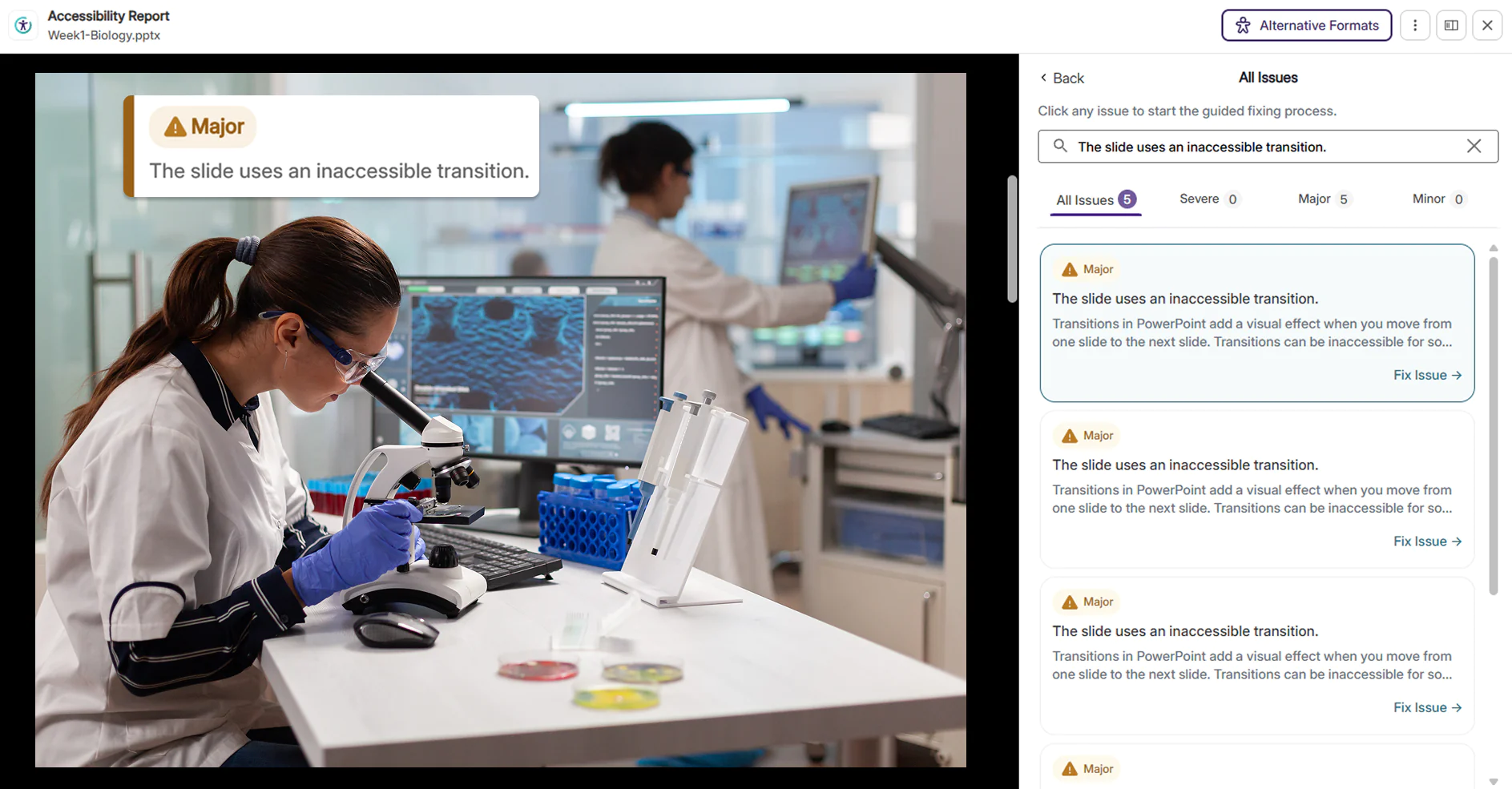
New document issue checkers now available to identify more accessibility concerns
Several new checkers for accessibility issues have been added to YuJa Panorama, helping users identify a larger number of accessibility concerns.
New updates include:
Inaccessible PowerPoint transitions: Rapid flashing, strobe effects, and aggressive or high-motion slide transitions in PowerPoint presentations are now detected, helping instructors make their presentations accessible and safe to watch for all viewers, including those with visual or cognitive sensitivities.
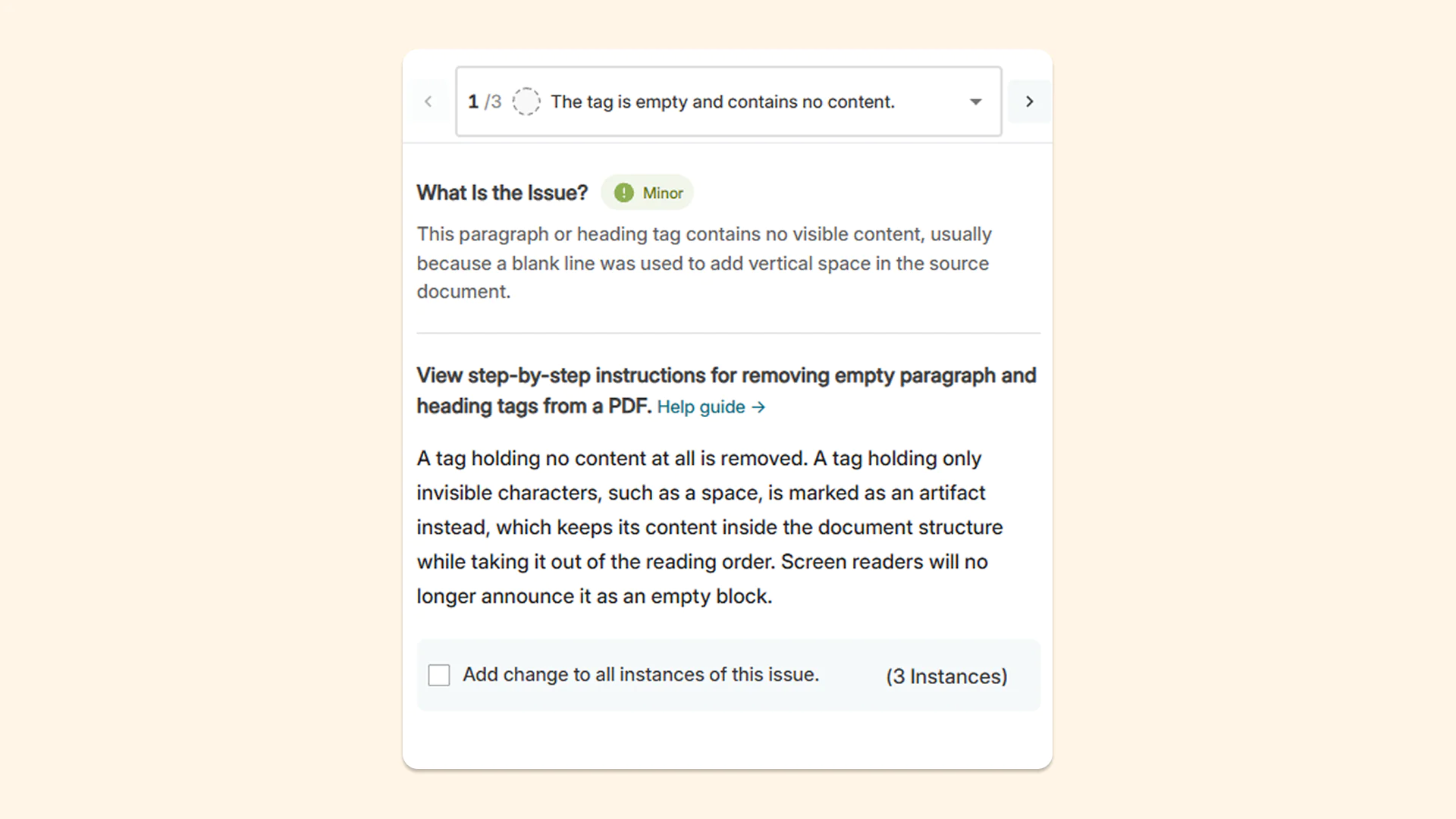
Empty tags and blank content containers: Empty paragraph tags and blank content containers are now flagged so users can manually remove them from the tag tree. This reduces confusion for users who use assistive technologies, as screen readers will announce empty blocks if empty paragraph tags are left on a page.
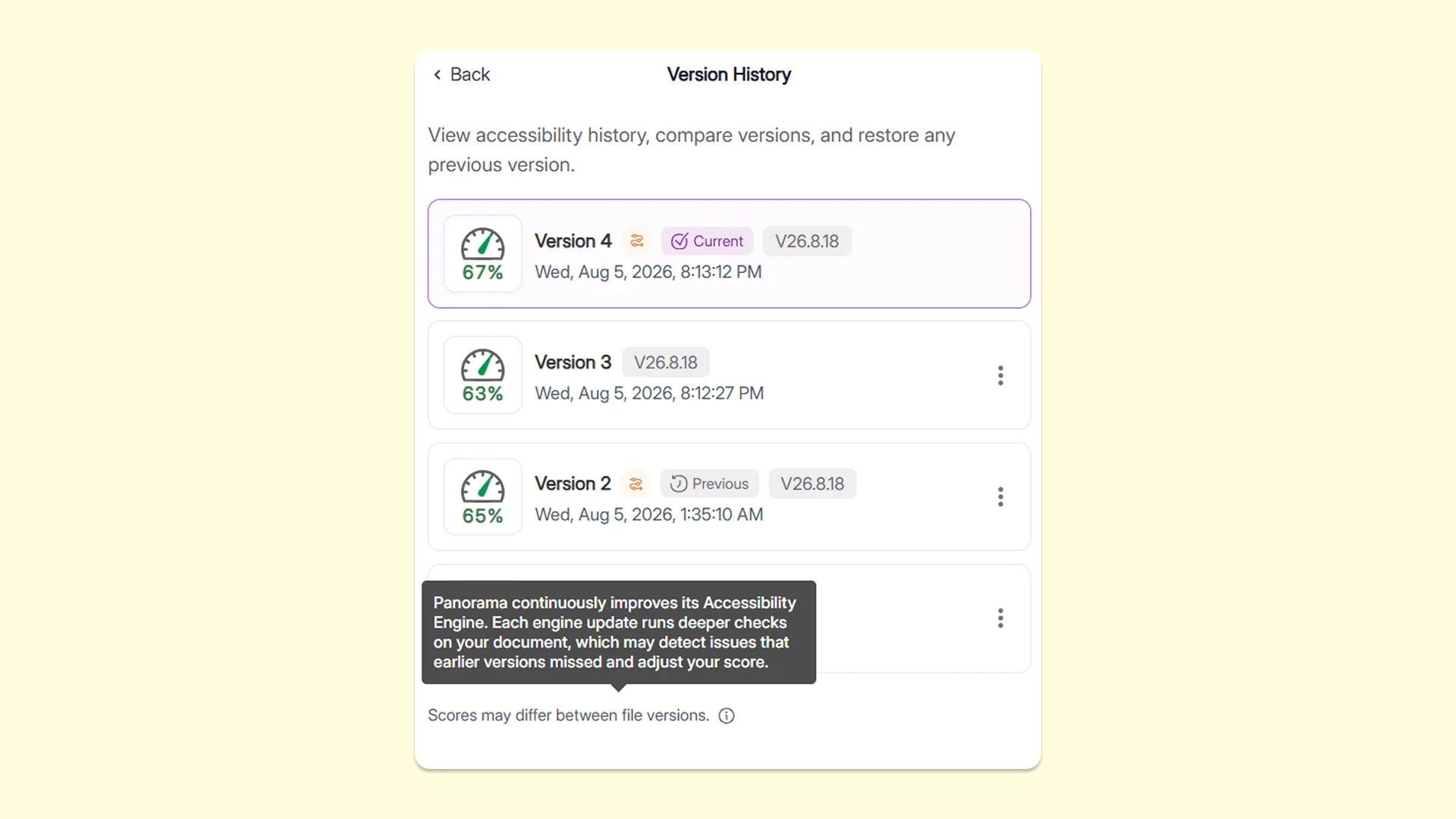
Get insights into how updates may affect accessibility scores with YuJa Panorama’s engine-version history in the Accessibility Report
The Version History tab now shows which version of YuJa Panorama’s reporting engine was used for each remediation effort applied to the document, along with information about how updates may affect accessibility scores. This gives users greater visibility into why a document’s score may change over time, making it easier to understand score differences, track improvements, and confidently monitor accessibility progress.
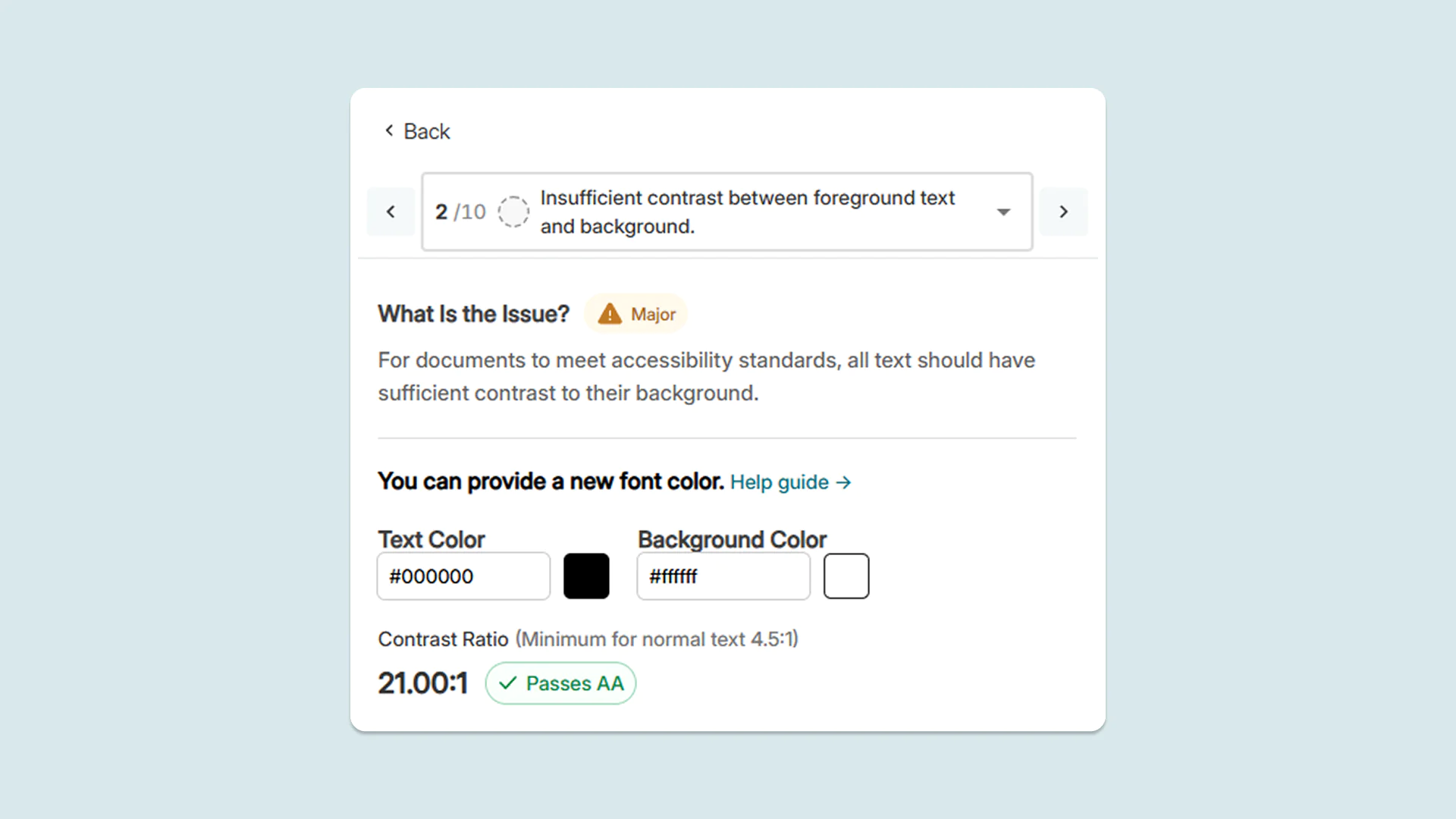
New target ratio label in the Accessibility Report to make poor color contrast easier to fix
When remediating color contrast issues in the Accessibility Report, users can now see a clear target ratio for color contrast required to pass accessibility checks. To adjust colors, faculty now have a precise benchmark to work toward, making it easier to fix contrast issues.
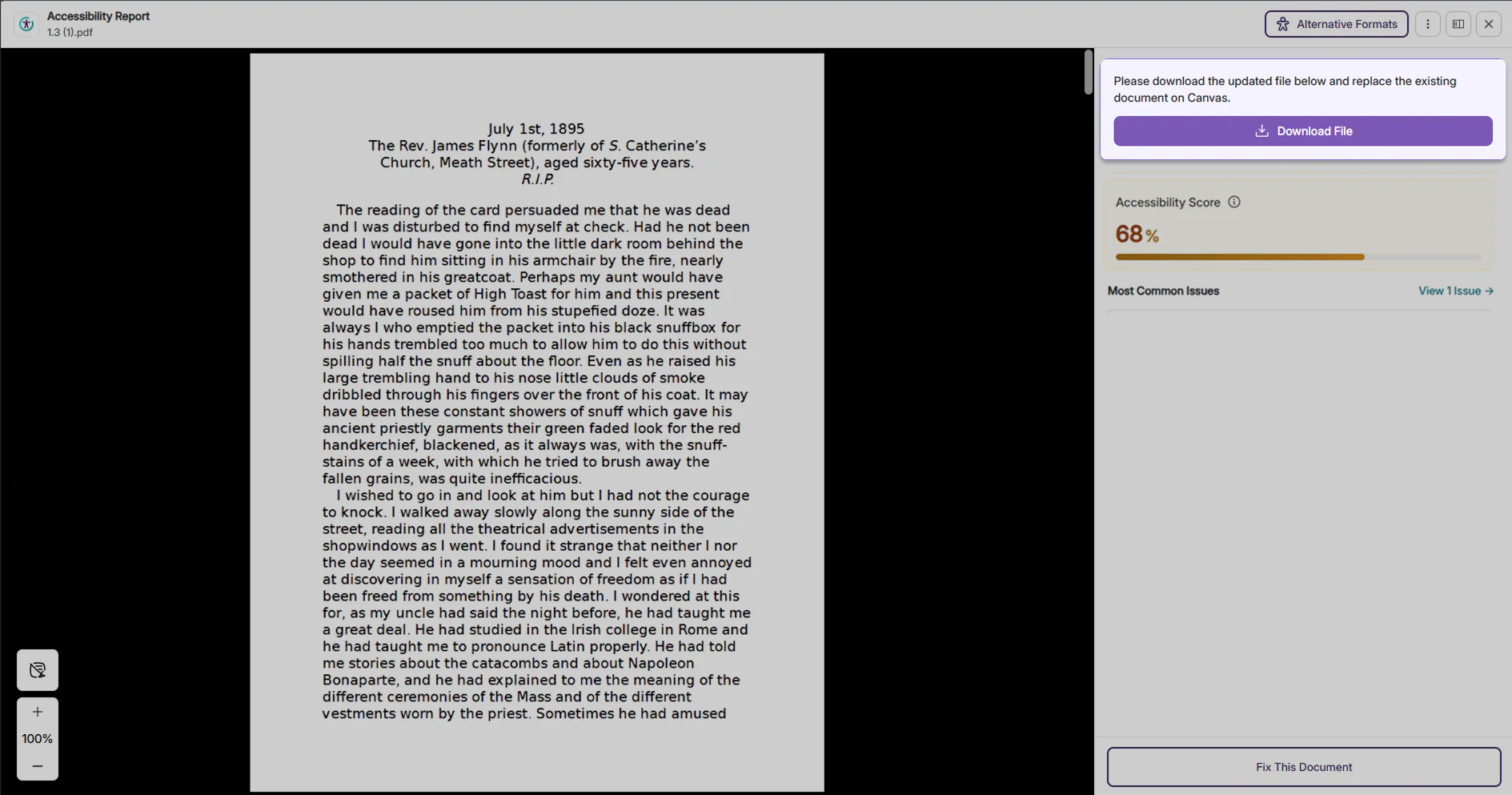
Alerts for guidance about next steps to help users resolve document replacement
When replacing a document in the LMS fails, users now receive a prominent, highly visible alert message that guides them step-by-step on what to do next. It specifically instructs them to download the document and replace it directly on the LMS, saving time and removing guesswork for instructors.
Save time on manual re-entry with preserved alt text for tables after PDF retagging
When retagging PDF documents, YuJa Panorama now automatically restores existing alt text and accessibility descriptions for tables after the PDF is reprocessed. This eliminates the need to manually re-enter information for table elements, saving administrators time while helping ensure important accessibility information is preserved after rounds of editing.
YuJa Panorama AutoPilot v26.7.0 Release
Over the next few weeks, YuJa AutoPilot is adding an AI assistant for automated course accessibility remediation and an AI assistant to help students better understand course materials.
Summarize reports, identify common issues, and automate course remediation with YuJa Panorama’s new YuJa AutoPilot AI Assistant
YuJa Panorama is introducing a brand new YuJa AutoPilot AI Assistant in the YuJa AutoPilot tab that helps administrators quickly identify and resolve accessibility issues automatically across course content using a conversational interface. Instead of manually navigating courses, folders, and documents to find and fix issues, users can simply ask the AI Assistant questions and request remediation directly.
The assistant automates time-consuming tasks for instructors and administrators with four primary functionalities:
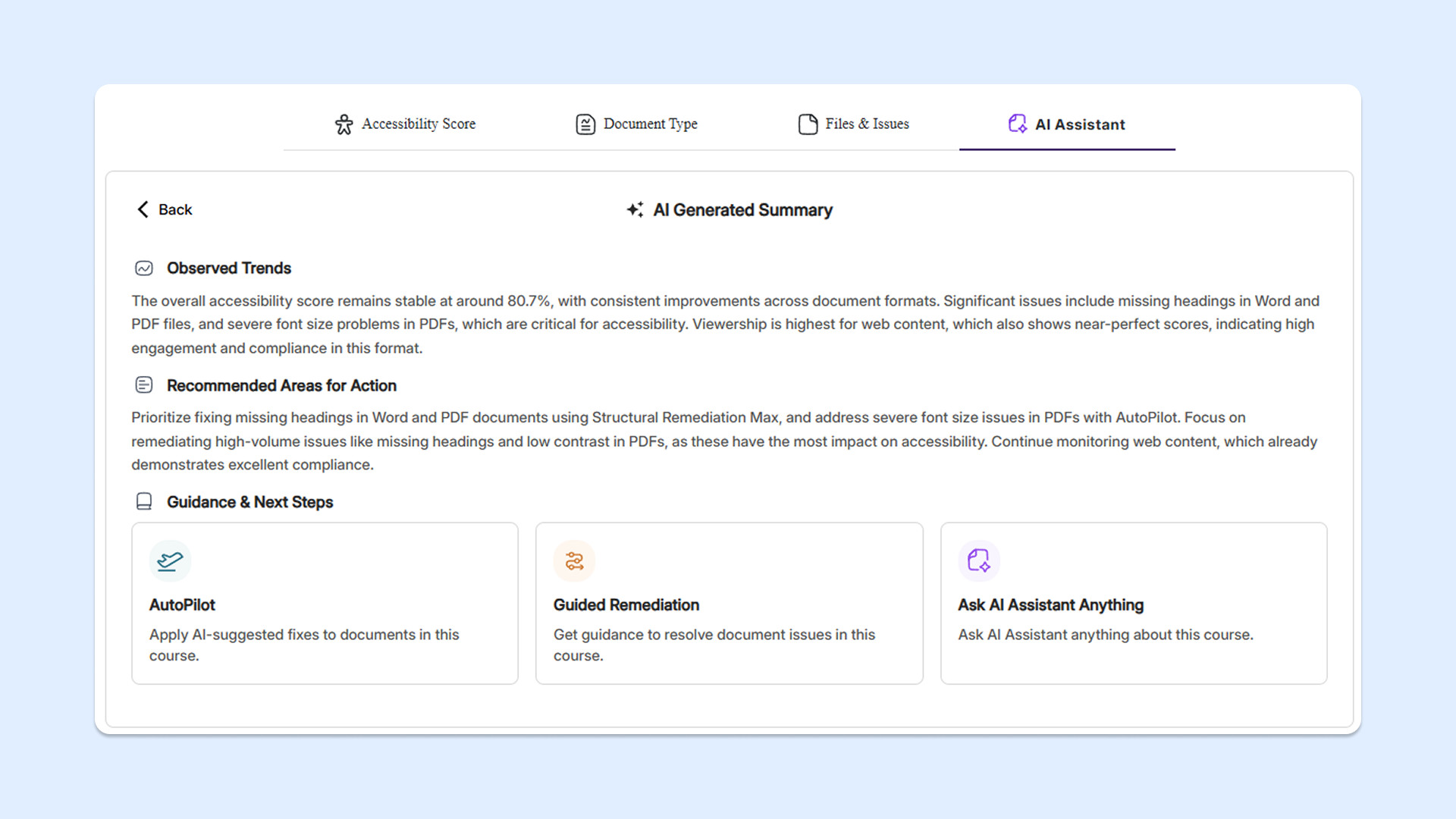
Summarize course report: The assistant will highlight trends in the course report, flag top issues, and provide recommended remediation steps for faculty to take.
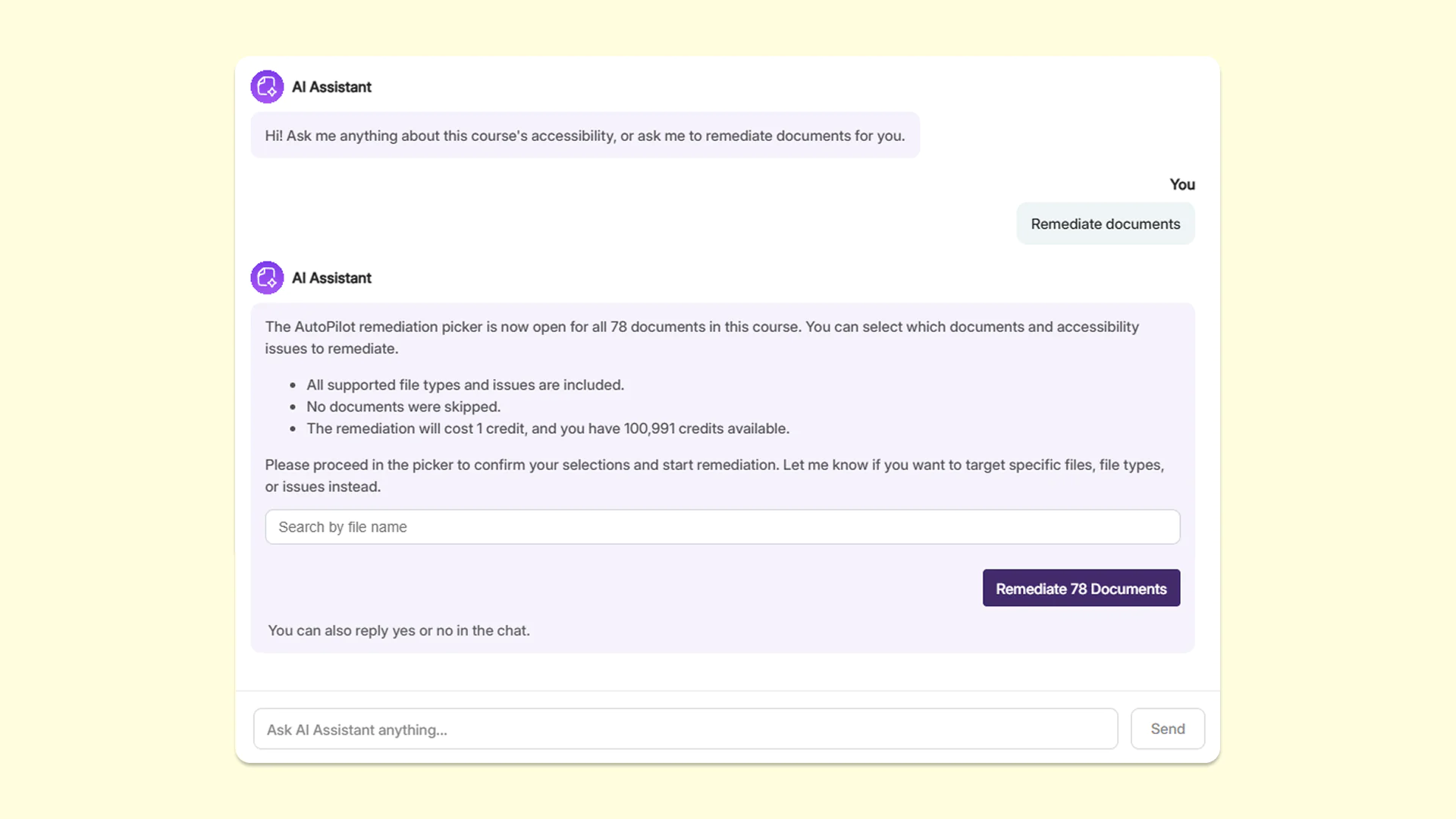
Remediate documents: The assistant will activate YuJa AutoPilot to automatically remediate accessibility issues across documents in the course.
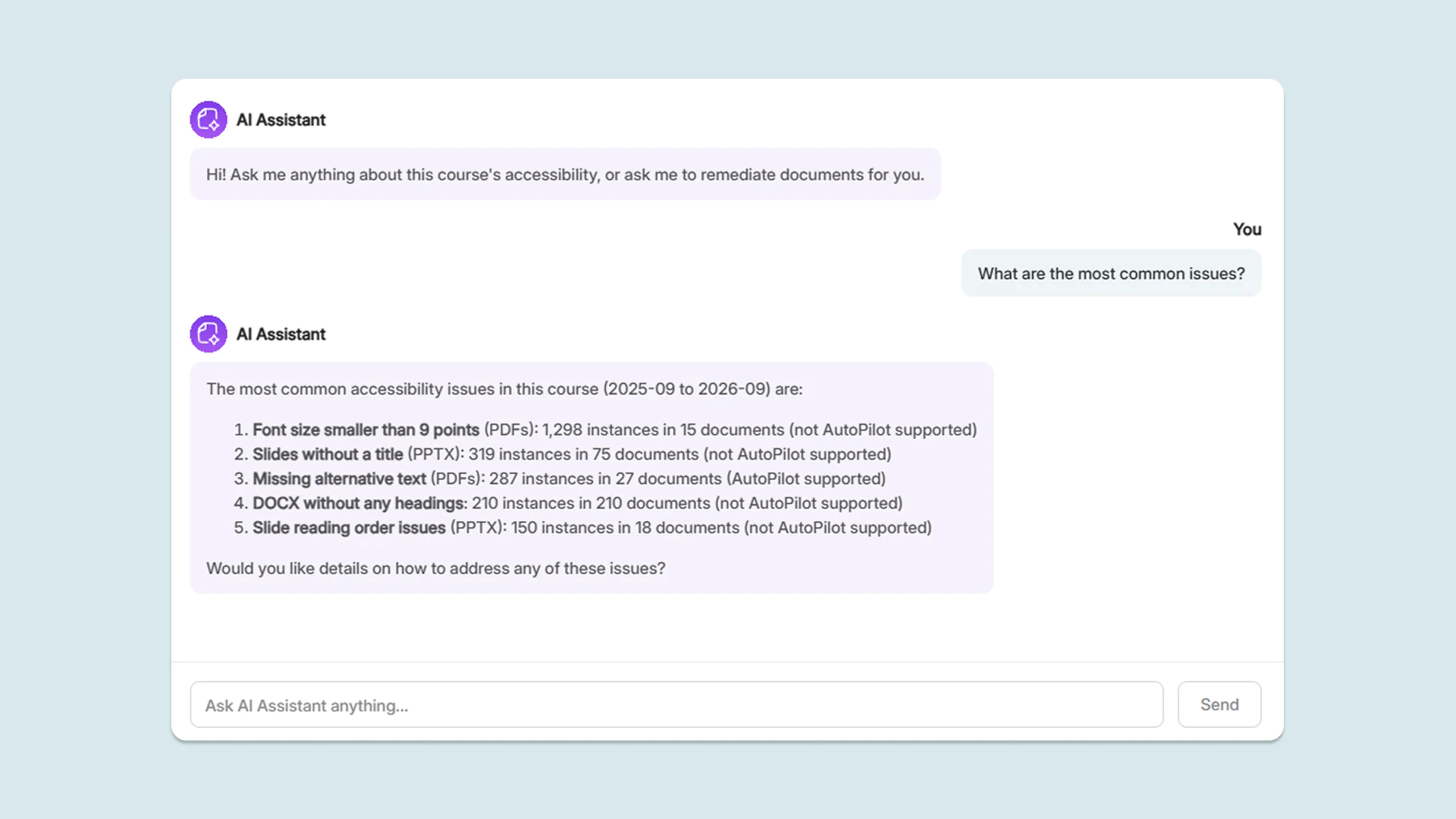
Identify most common issues: The assistant will find the most common accessibility issues in the course for faculty to resolve, helping them make high-impact remediation decisions.
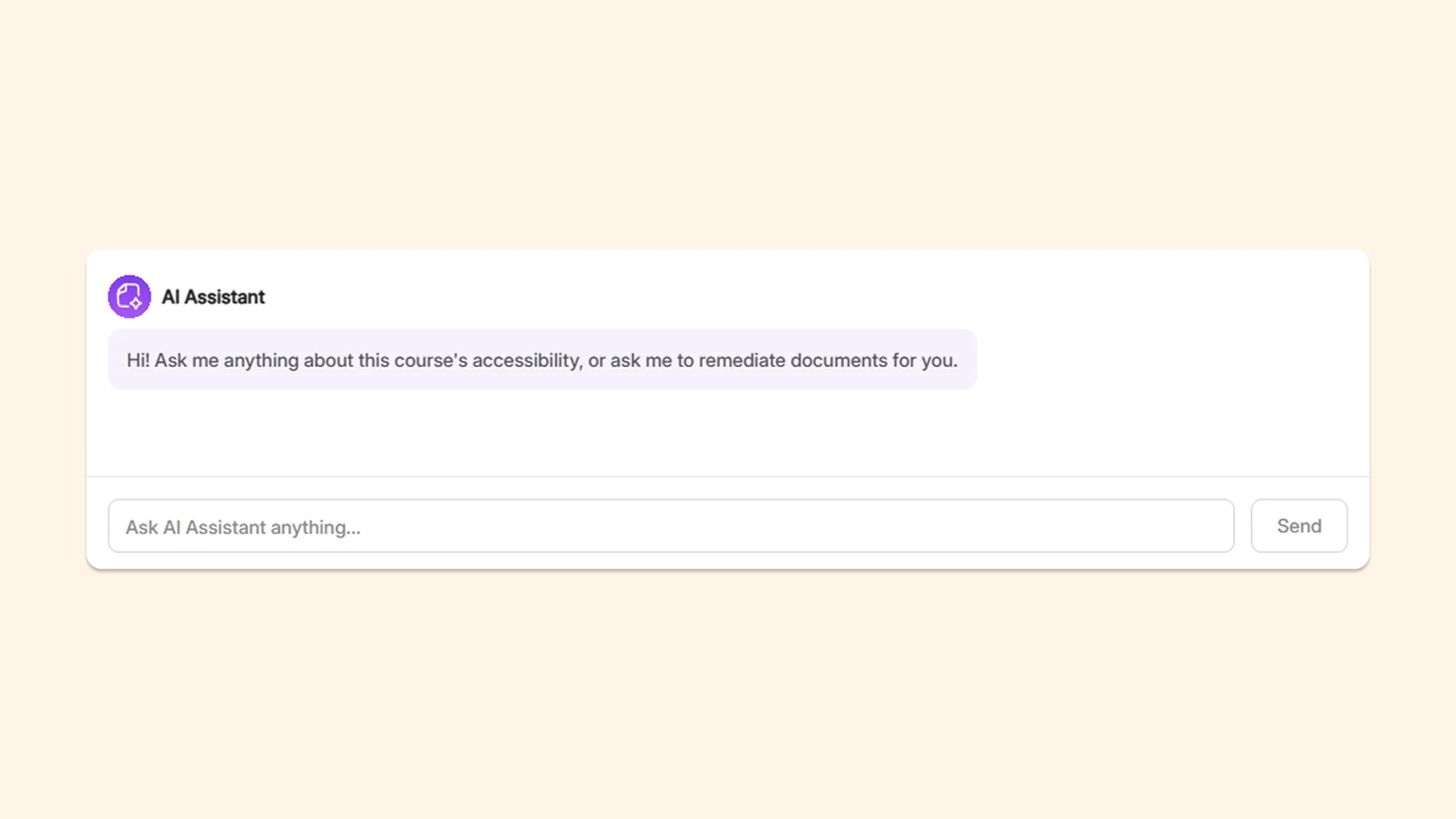
Ask AI Assistant: The assistant will answer any other inquiries related to the course and its accessibility issues posed by the user in a conversational interface.
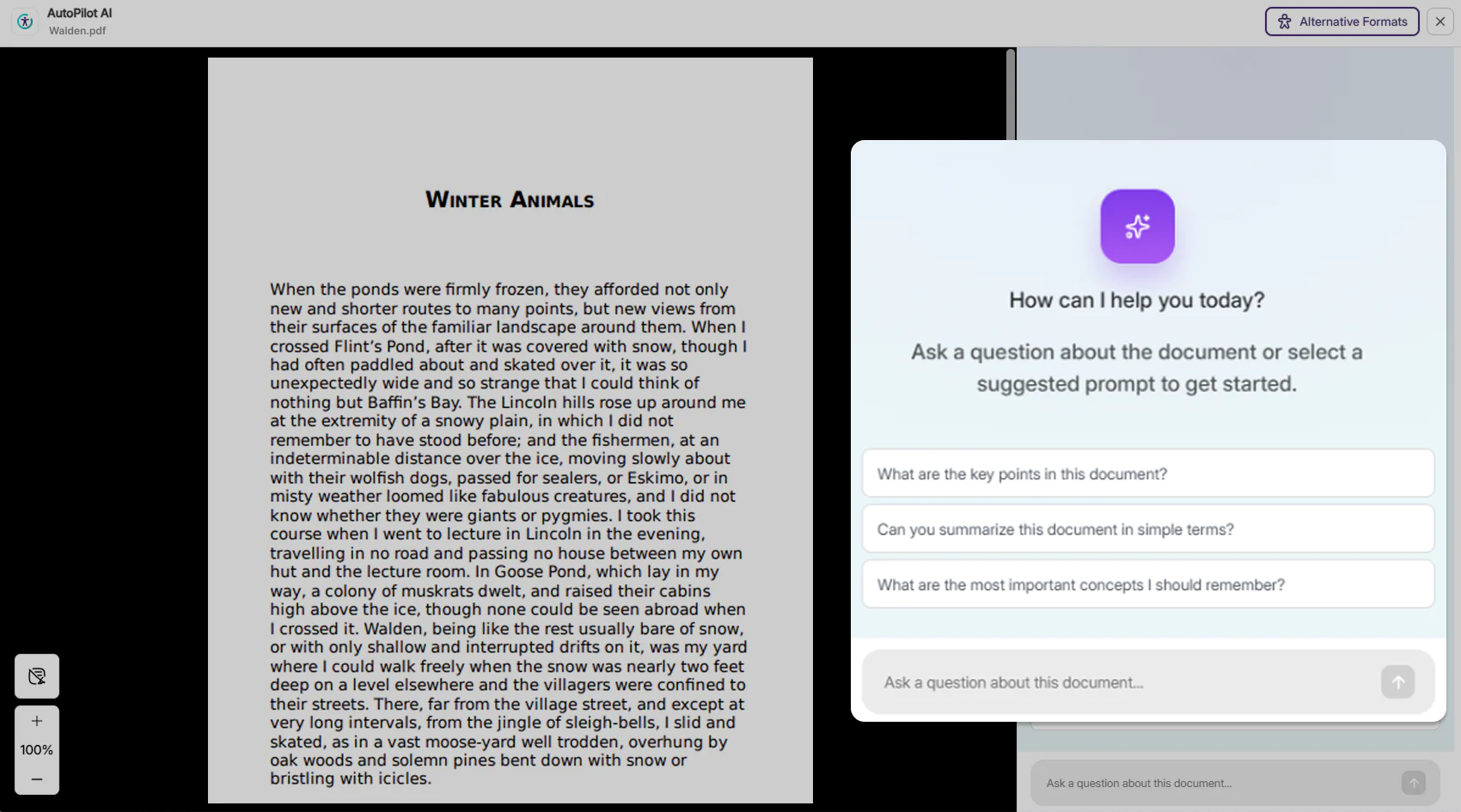
Get context-aware answers immediately with the new AI Assistant for students
Students can now ask questions about their course documents through a conversational AI-powered interaction assistant in YuJa Panorama. Embedded directly in the Alternative Formats menu, students can instantaneously receive context-aware answers grounded in the source material without needing to ask their instructors.
Join the 1,000+ Organizations Deploying High-Impact Solutions
